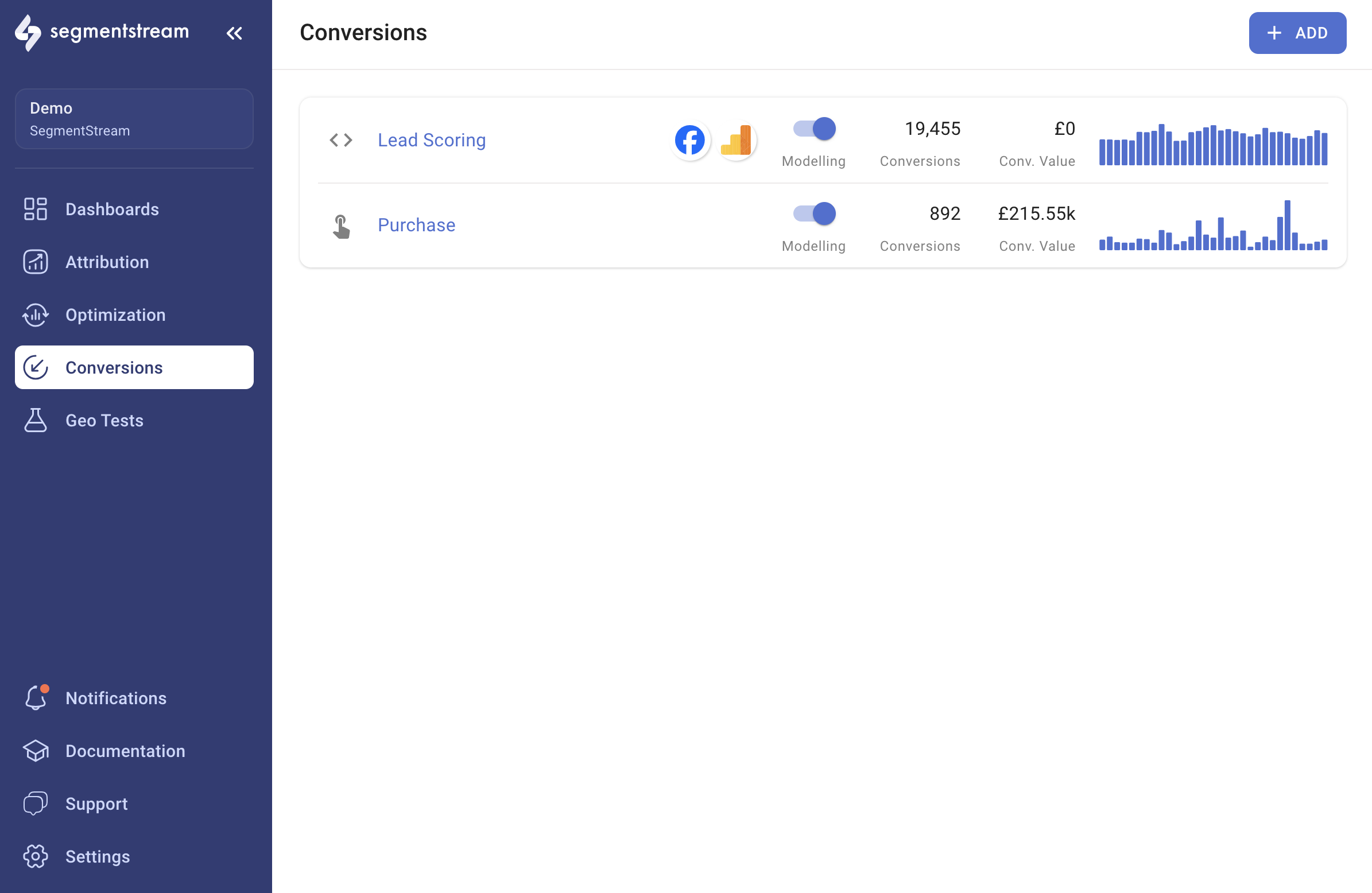
Simple conversions
Track purchase or custom events collected through the SegmentStream tracker.
Combined conversions
Merge two or more simple conversions into a single conversion.
Custom conversions
Write SQL against raw BigQuery data for offline or CRM-based conversions.
Lead Scoring
ML-powered lead qualification and value prediction.
Conversions export
Export conversion signals to advertising platforms.
Simple conversion
Every event you collect through the SegmentStream tracker can be marked as a conversion. To create a simple conversion, navigate to the Conversions page, click + ADD, and select Simple conversion. There are two types of simple conversions: Purchase and Custom event.Purchase
The standard conversion for e-commerce websites. To create this type of conversion, name the conversion (for example, “Purchase”), make sure the Purchase conversion event type is selected, and click SAVE.Filters
To configure a filter, select from a list of built-in default dimensions, custom dimensions and metrics based on the event parameters collected to your GA4 property, as well as product dimensions. For example, if you want to track purchases with a total value over $100, use the Event Transaction Total dimension as displayed in the screenshot below.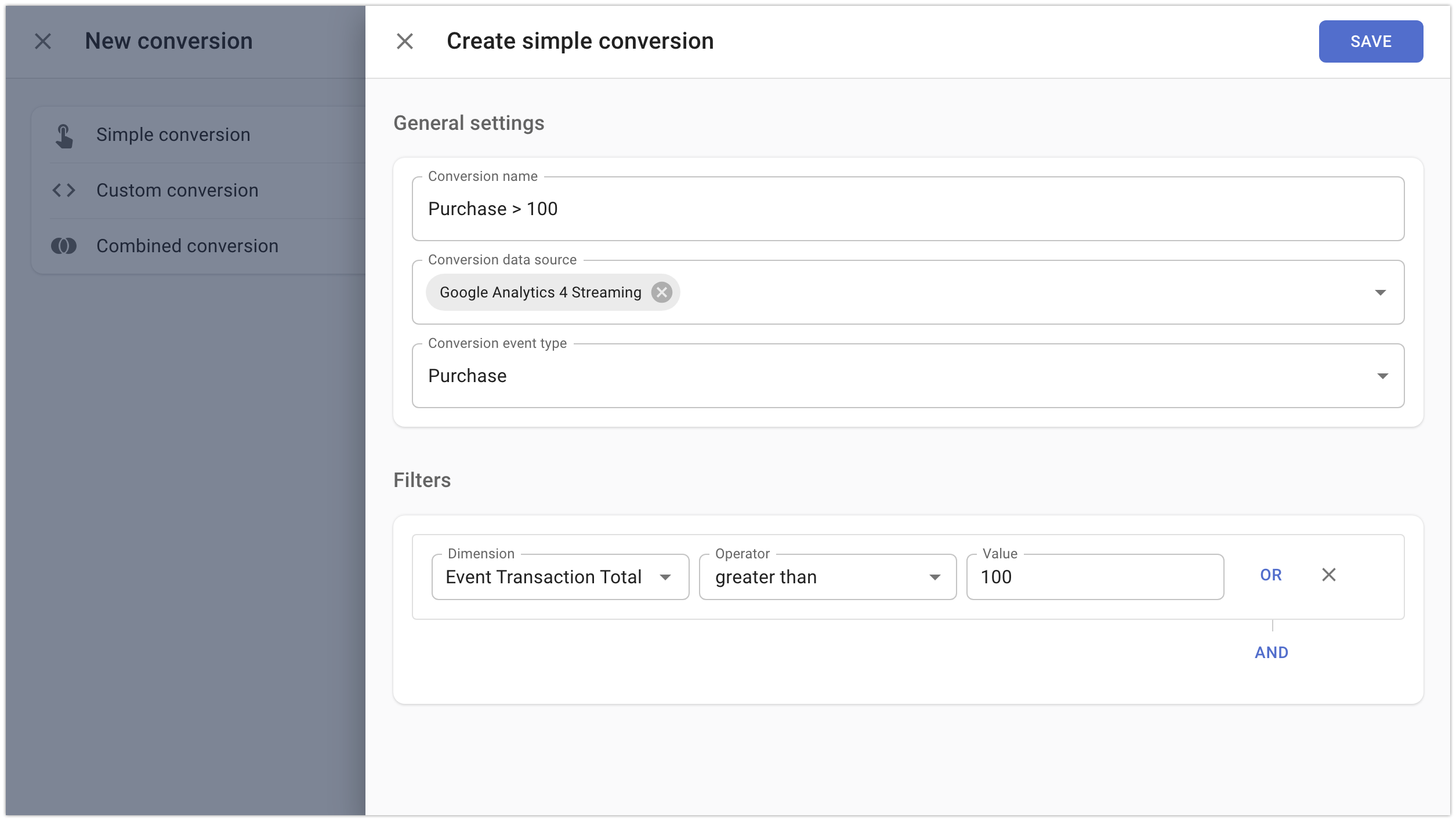
Conversions deduplication
By default, Purchase conversions are deduplicated by order ID. To track only the first purchase per user, enable the Deduplicate conversions by User option.Conversions adjustment
Enabling conversions adjustment allows you to specify a time window, in days, during which conversion data in SegmentStream can be updated based on refunds processed in GA4. This keeps SegmentStream data aligned with your GA4 reports.Normalize by conversion
Adjusts the value of the selected conversion relative to another conversion type (for example, Purchase). This helps in benchmarking, scaling, and aligning conversion values to better reflect business impact and optimize attribution.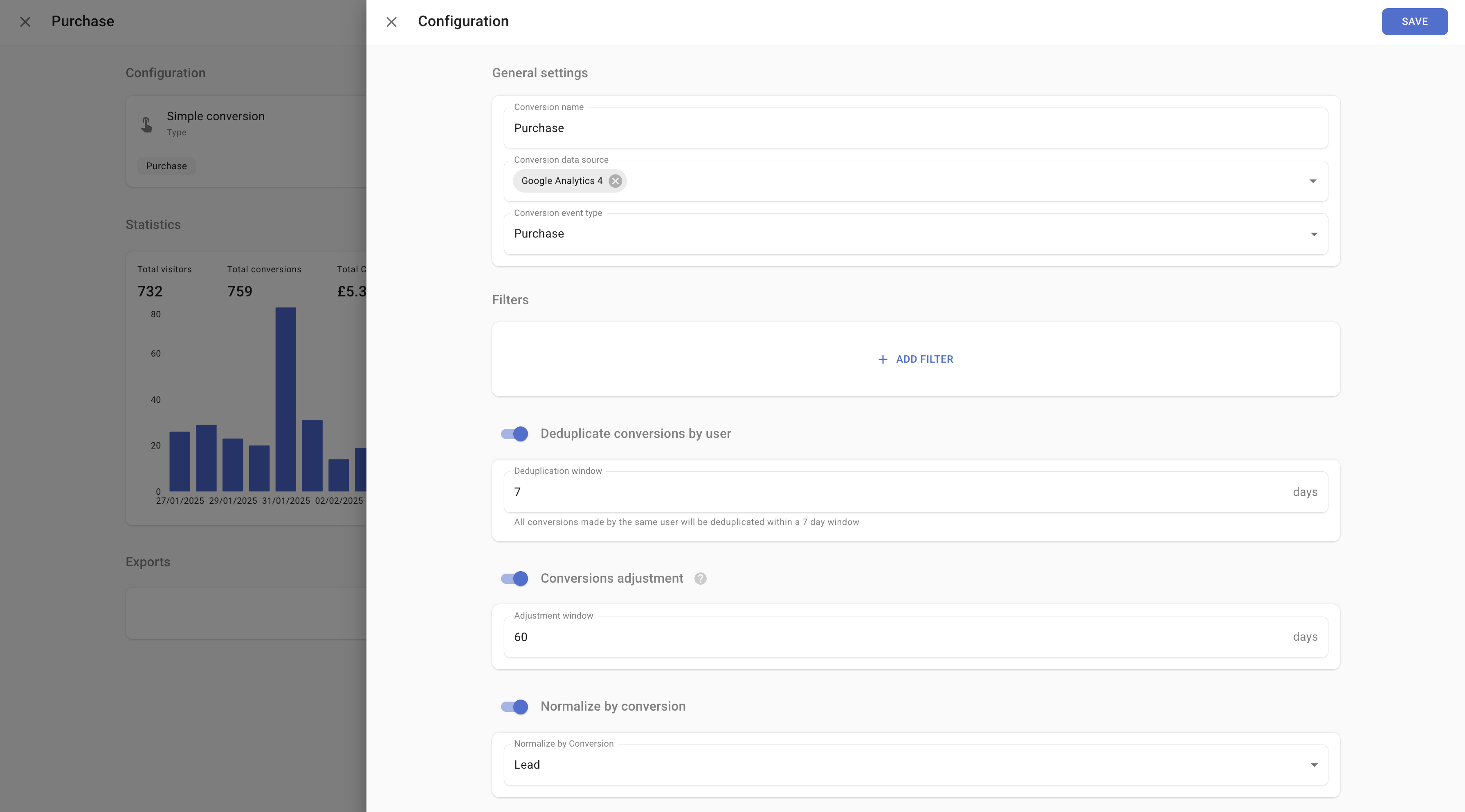
Custom event
All events other than the purchase event can be used as conversions through this type. To create this type of conversion, name the conversion (for example, “Lead”), select the Custom conversion event type, and then configure the following sections.Filters
To configure a filter, select from a list of built-in default dimensions, custom dimensions and metrics based on the event parameters collected to your GA4 property, as well as product dimensions. As an example, the Event Action dimension values contain the names of the events as they are sent to your GA4 property, so creating a conversion for the event with the lead event name would require the setup illustrated in the screenshot below.Conversion value
If your conversion has a monetary value that you would like to see in SegmentStream reports, you have two options:- Event value — useful when the value of each conversion might differ. This requires the
valueevent parameter to be configured in the event sent to GA4. - Manual value — all conversions have an equal value.
Conversions deduplication
Enabling Deduplicate conversions by User filters out conversions that happened by users with the same Google Client ID or User ID within a set day window.Normalize by conversion
Adjusts the value of the selected conversion relative to another conversion type (for example, Purchase). This helps in benchmarking, scaling, and aligning conversion values to better reflect business impact and optimize attribution.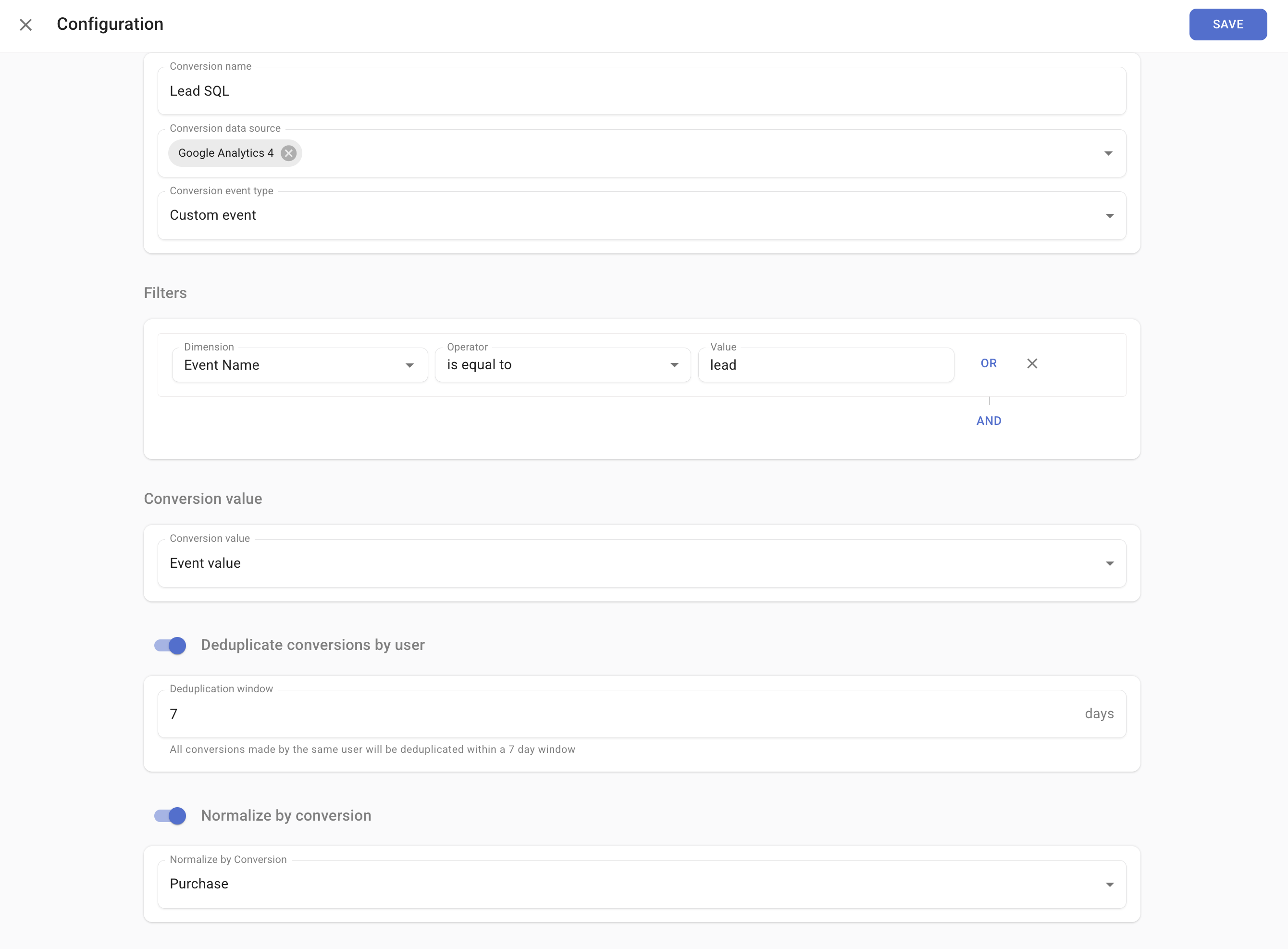
Combined conversion
If you have two or more conversions, you can combine them into a single conversion. Every time one of your simple conversions is triggered, your combined conversion is triggered as well. To create a combined conversion, navigate to the Conversions page, click + ADD, and select Combined conversion.Conversions deduplication
Enabling deduplication filters out conversions that happened by users with the same Google Client ID within a set day window.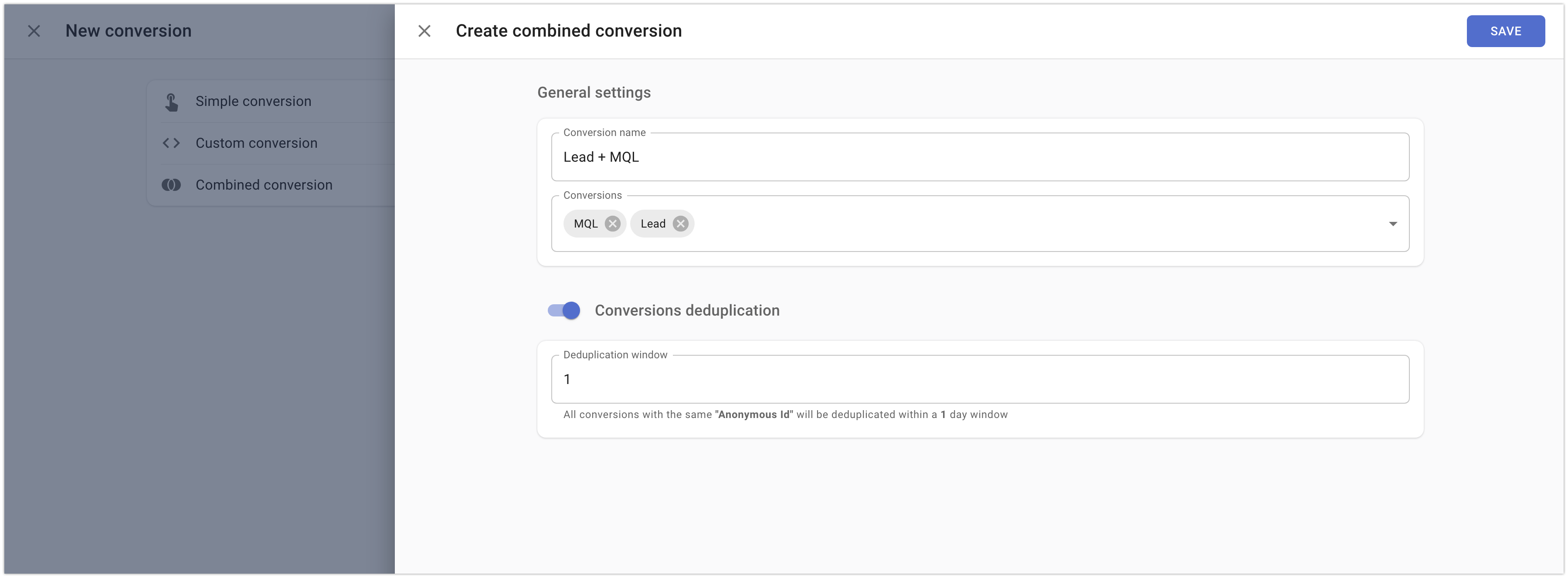
Custom conversion
Custom conversions are available only on the enterprise plan.
- They are created and maintained by the SegmentStream technical team.
- Any data in your BigQuery can be used to calculate conversions.
Using CRM data
SegmentStream supports data sources for the following CRM tools, allowing you to load data directly into the connected Google BigQuery dataset:- HubSpot
- Salesforce
- Microsoft Dynamics
- Pipedrive
Creating a custom conversion
The SQL query results should consist of three columns:id, client_id, and created. Additional columns are optional based on available data.
- The
createdcolumn must always contain a valid timestamp. - For optional columns, assign
NULLonly if data is occasionally unavailable. If all values for a column are unknown, omit that column from the query. - If your query involves a partitioned table (for example, partitioned by
date), include a filter on the partition column in theWHEREclause:
Collecting geo data from CRM
To improve your market selection options for launching geo tests, consider collecting geo location data in your CRM. When adding geo data from your CRM, include it in theparams column as key-value pairs. The key should indicate the geographical scope (city, country, or region), while the value should specify the name of the geo location.
Example
After a user purchases a service on your website, they need to confirm their order when contacted by your call centre staff. Once a call centre operator receives confirmation, they update the status in the CRM system. To view users who have confirmed their purchase in SegmentStream reports, load the data from the CRM system into BigQuery. Then create a custom conversion with SQL that extracts conversions from the CRM data, along with a client identifier used to stitch the conversion to the user’s website session. The following code runs a daily check on website orders created within the last 30 days. It marks them as conversions if their CRM statuses are “confirmed” or “paid”, and collects the country, region, and city information.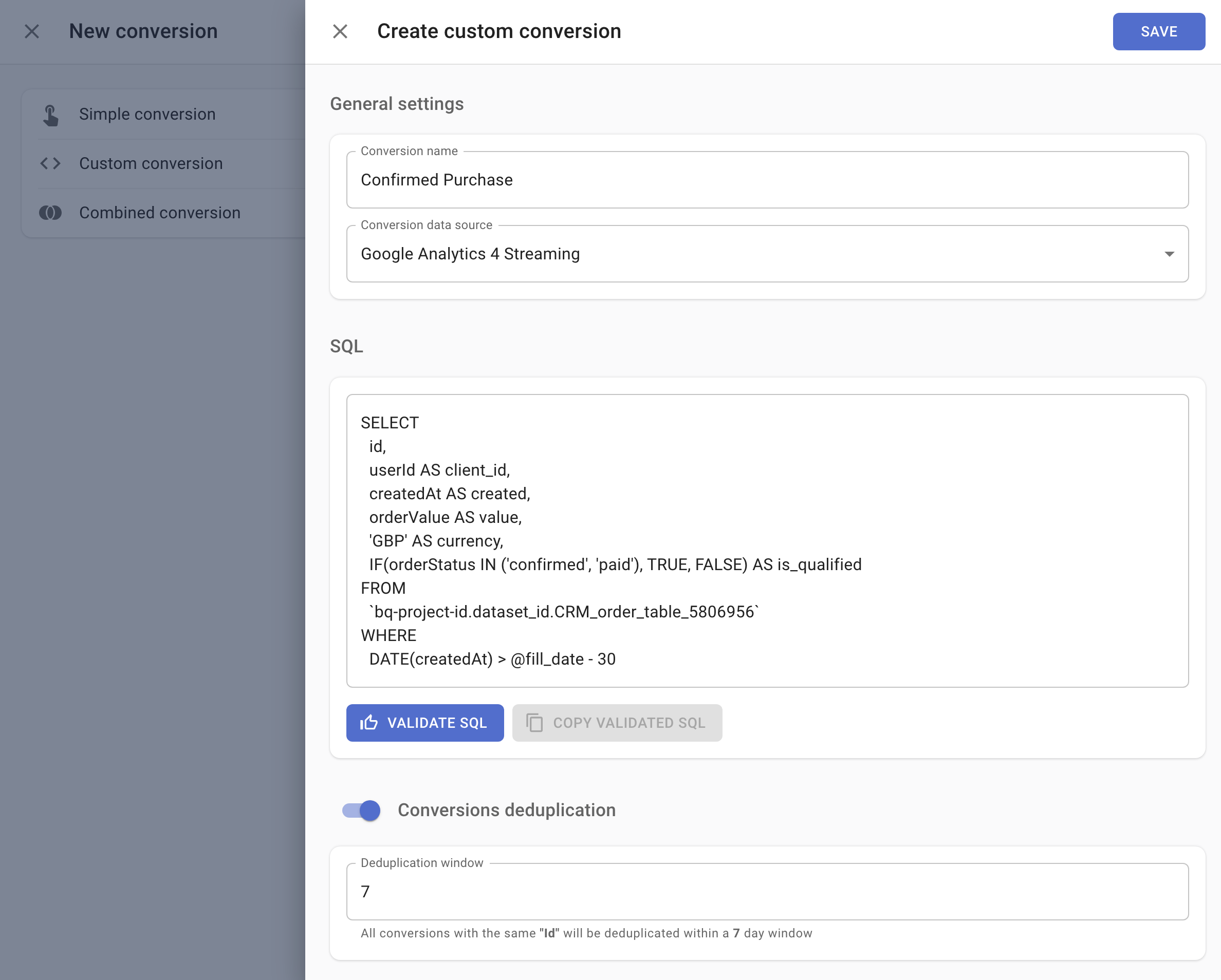
Predicted value
You can use a predicted value for your custom conversions. This value is calculated by linking a target conversion’s value to the probability of that conversion occurring. To activate this feature, theuser_id fields in both the target custom conversion and in any custom conversion for which you want a predicted value should be based on the same identifier. Also, the CRM data that the custom conversion is built on should contain user-related data — such as geolocation, activities, and any other information particular to that user. This data serves as features for the machine learning model that predicts the value.
When you validate the SQL for your custom conversion, you will find an option called “Predicted value.” Choosing this reveals two more fields:
- Target conversion — shows all eligible conversions for value prediction. To qualify, a custom conversion needs the
user_idfield and at least one conversion in the past 60 days. - Conversion window — sets the maximum timeframe for linking conversions.
Use case
Consider this scenario: you track two types of conversions. The first is called “Lead,” which occurs when someone submits a form. The second, “Deal Closed,” happens when a lead converts into a deal. Each deal has a unique value. To estimate the value of each lead, create a modified “Lead” conversion. Enhance the SQL by incorporating CRM data features such as the number of times the user has contacted sales, their business country, and their job title. Set the conversion value to “Predicted value,” choose “Deal Closed” as the target conversion, and set the conversion window to 40 days to accommodate the typical duration within which most leads convert into deals. After SegmentStream completes its calculations, you can view the predicted value of each lead based on the value of the deals that have closed.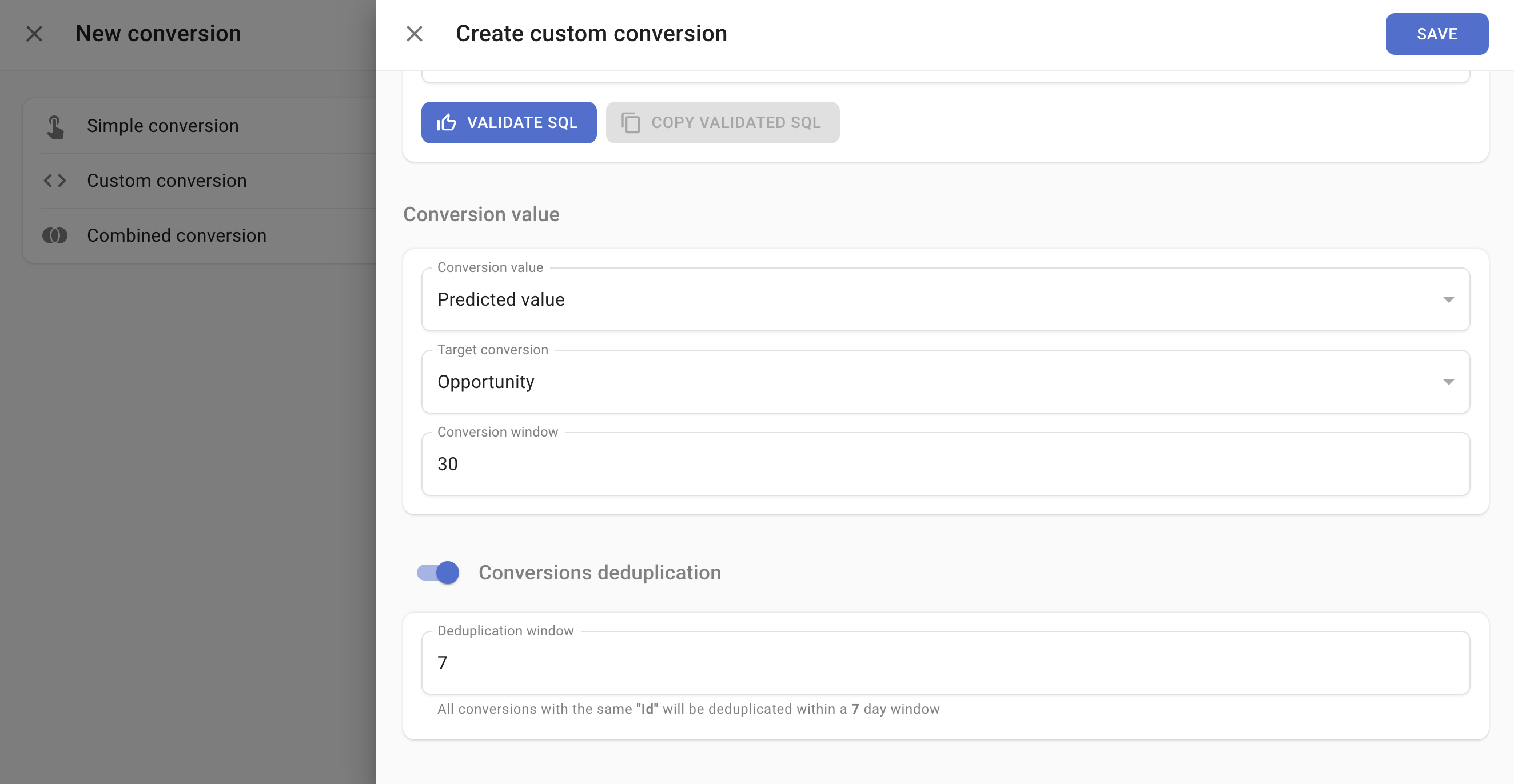
Conversions adjustment
Enabling conversions adjustment allows you to specify a time window, in days, during which conversion data in SegmentStream can be updated based on changes detected in your CRM. This keeps SegmentStream data aligned with your CRM records.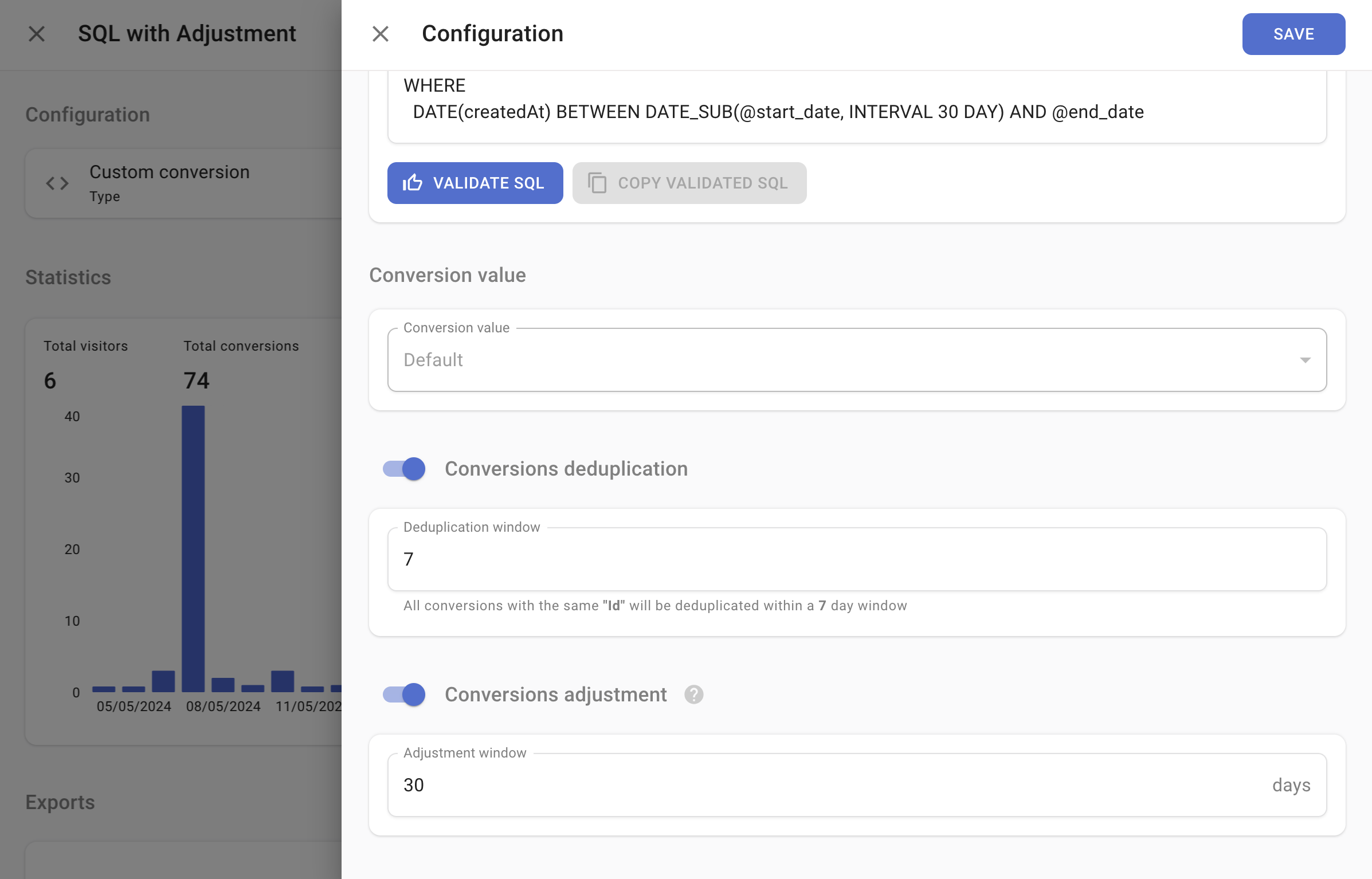
BigQuery access issues
If the data from your CRM is exported to a different project than the one specified in the SegmentStream BigQuery settings, provide the SegmentStream service account email with the BigQuery Data Viewer and BigQuery User roles for that project before setting up custom conversions.Lead Scoring conversion
Lead Scoring is an enterprise feature that requires collaboration with the SegmentStream data team for implementation and optimization.
- Focus on qualified leads that are most likely to convert
- Optimize marketing campaigns toward lead quality, not quantity
- Improve ROI by focusing budget on channels that generate valuable leads
- Export qualified leads to advertising platforms for better targeting
Getting started
1
Assess your data
Review whether you have the required lead and sales data.
2
Choose integration method
Determine if you can use a standard CRM integration or need custom data setup.
3
Contact SegmentStream
Reach out to discuss your specific requirements and begin the setup process.
Data requirements
There are two approaches depending on your CRM setup:- Standard CRM integration
- Custom data integration
If you use a well-known CRM system, SegmentStream can automatically connect to your existing data. For example, HubSpot has a ready-to-use integration.Contact your SegmentStream manager to get details about connecting your specific CRM system. With standard CRM integration, SegmentStream automatically collects lead data and deal outcomes to train the scoring model.
How Lead Scoring works
- Data analysis — SegmentStream analyzes your historical lead and sales data to identify patterns.
- Model training — Machine learning models learn which lead characteristics predict successful conversions.
- Qualification — New leads are evaluated and only those meeting quality thresholds become conversions.
- Value prediction — The system estimates potential deal value for each qualified lead.
- Daily updates — Lead qualification and scoring are updated daily as new data becomes available.
What you get
- Qualified lead conversions — only high-quality leads that meet configurable thresholds are created as conversions in SegmentStream.
- Predicted deal values — estimated revenue potential for each qualified lead.
- Exportable data — qualified lead conversions can be exported to ad platforms such as Google Ads and Meta for enhanced conversions, lookalike audiences, and bid optimization.
- Reporting and analytics — use Lead Scoring conversions in SegmentStream reports to analyze qualified lead performance by traffic source and compare channel effectiveness.
Best practices
- Capture Google Client ID — ensure your forms capture the Google Analytics Client ID to link website behavior with lead data.
- Collect rich attributes — the more relevant information you collect about leads at the time of creation, the more accurate the scoring will be.
- Maintain data quality — keep lead and sales data clean and up-to-date.
- Historical data — provide at least 6 months of historical data for optimal model training.
Attributes must be available immediately when the lead is created to ensure they can be used for next-day conversion processing. Attributes added later in your sales process may not be available for new lead scoring.
Conversions export
Conversions export is available only on the enterprise plan.
1
Choose the conversion
Select the conversion you wish to export.
2
Open exports section
Scroll down to the Exports section.
3
Add export
Click + ADD EXPORT.
4
Select platform
Select the desired ad platform for your export.
5
Configure and save
Configure the export settings and save. Each morning, data from the previous day will be exported to the ad platform.