

segmentstream.conversion().
What the SDK does
- Click ID propagation: preserves ad platform click IDs, such as
gclid,fbclid,ttclid,msclkid,li_fat_id,ScCid,rdt_cid,twclid,dclid, andepik, across internal links,window.open, and History API navigation. - Cookieless pings: sends page-load and first-interaction pings to SegmentStream without relying on analytics cookies.
- Conversion tracking: sends direct conversion events from the website through
segmentstream.conversion().
Installing the SDK via GTM
1
Create a new tag
In Google Tag Manager, go to Tags and click New.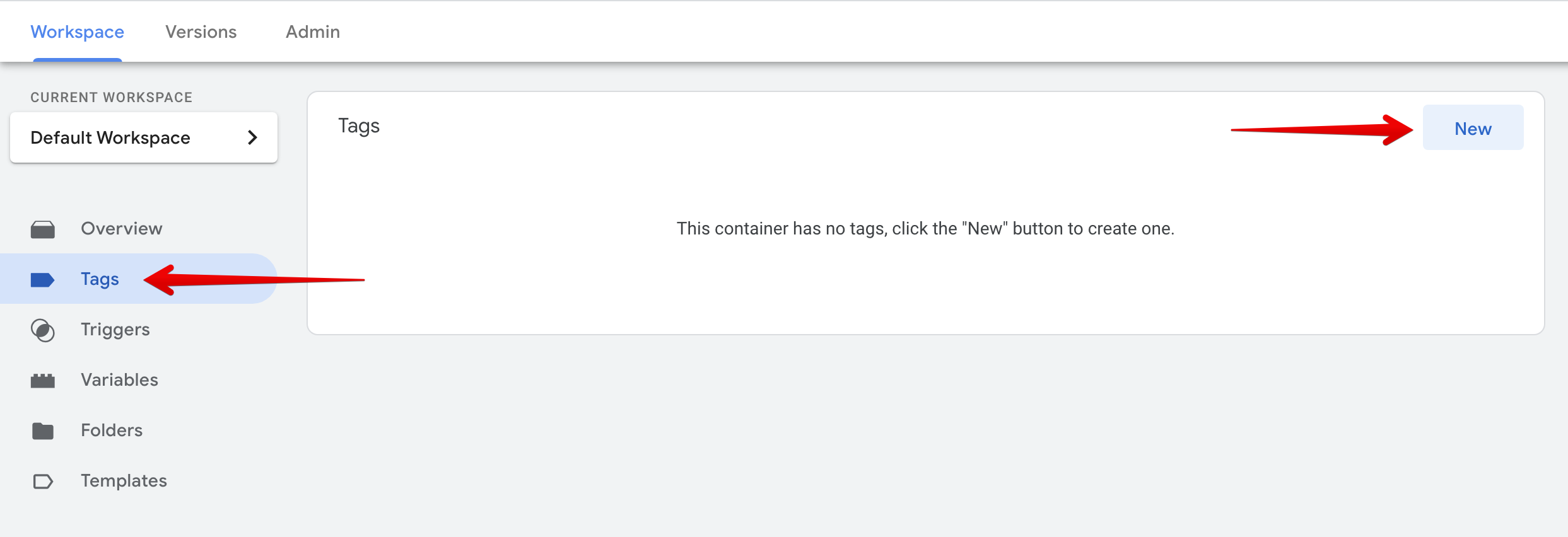
2
Configure the tag
Name the tag SegmentStream SDK and choose the Custom HTML tag type.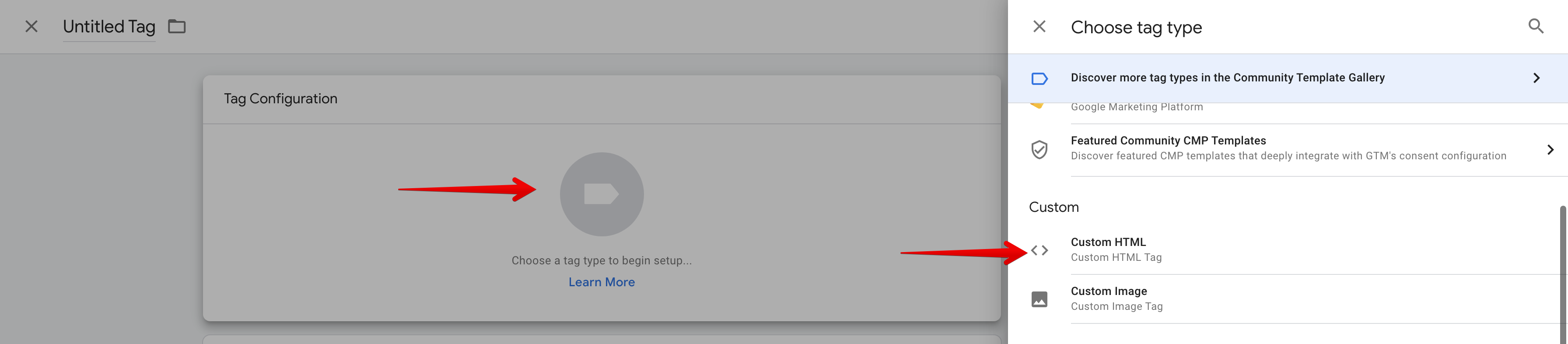
3
Add the SDK code
Enter the following code. Replace
ID PROVIDED BY MANAGER with the ID provided by your SegmentStream account manager.4
Set firing options
Expand Advanced Settings and select Once per page in Tag firing options.
5
Add a trigger
Choose All Pages in the Firing Triggers option.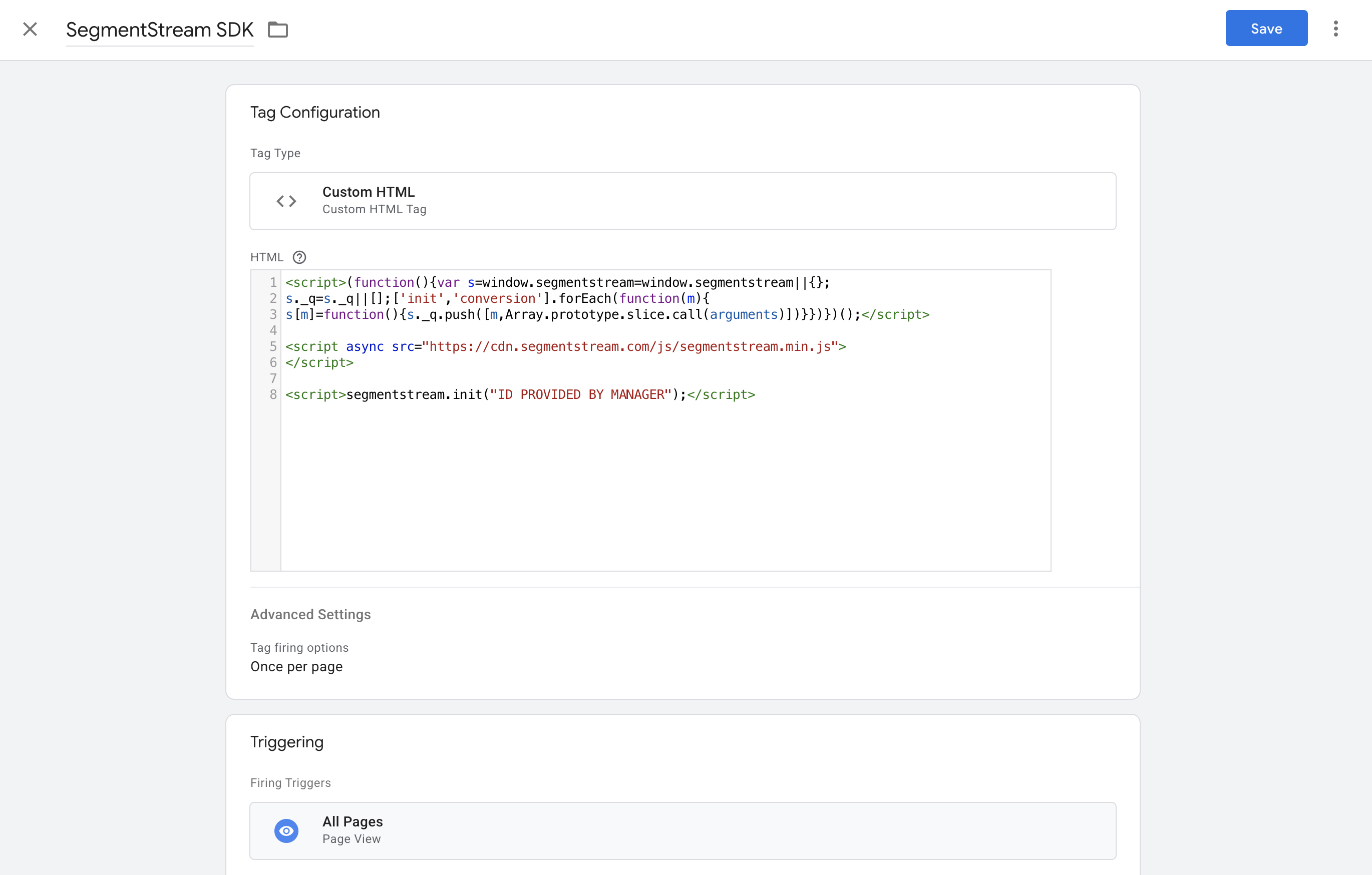
Configuring SDK settings
By default, the SegmentStream SDK enables click ID propagation and cookieless pings. Browser storage is disabled unless you explicitly enable it. Available settings:
Add the settings block before the SDK script only when you need to override the defaults:
Aggregated conversions measurement
The SegmentStream SDK supports conversion tracking through a strict object API. Use it when you need SegmentStream to receive a direct conversion signal from the website, such as a purchase, lead, signup, or subscription.Implementation through GTM
1
Create a new tag
In Google Tag Manager, go to Tags, click New, name the tag SegmentStream Conversion Tracking, and choose the Custom HTML tag type.
2
Add the conversion code
In the HTML block, insert the appropriate code for your conversion type: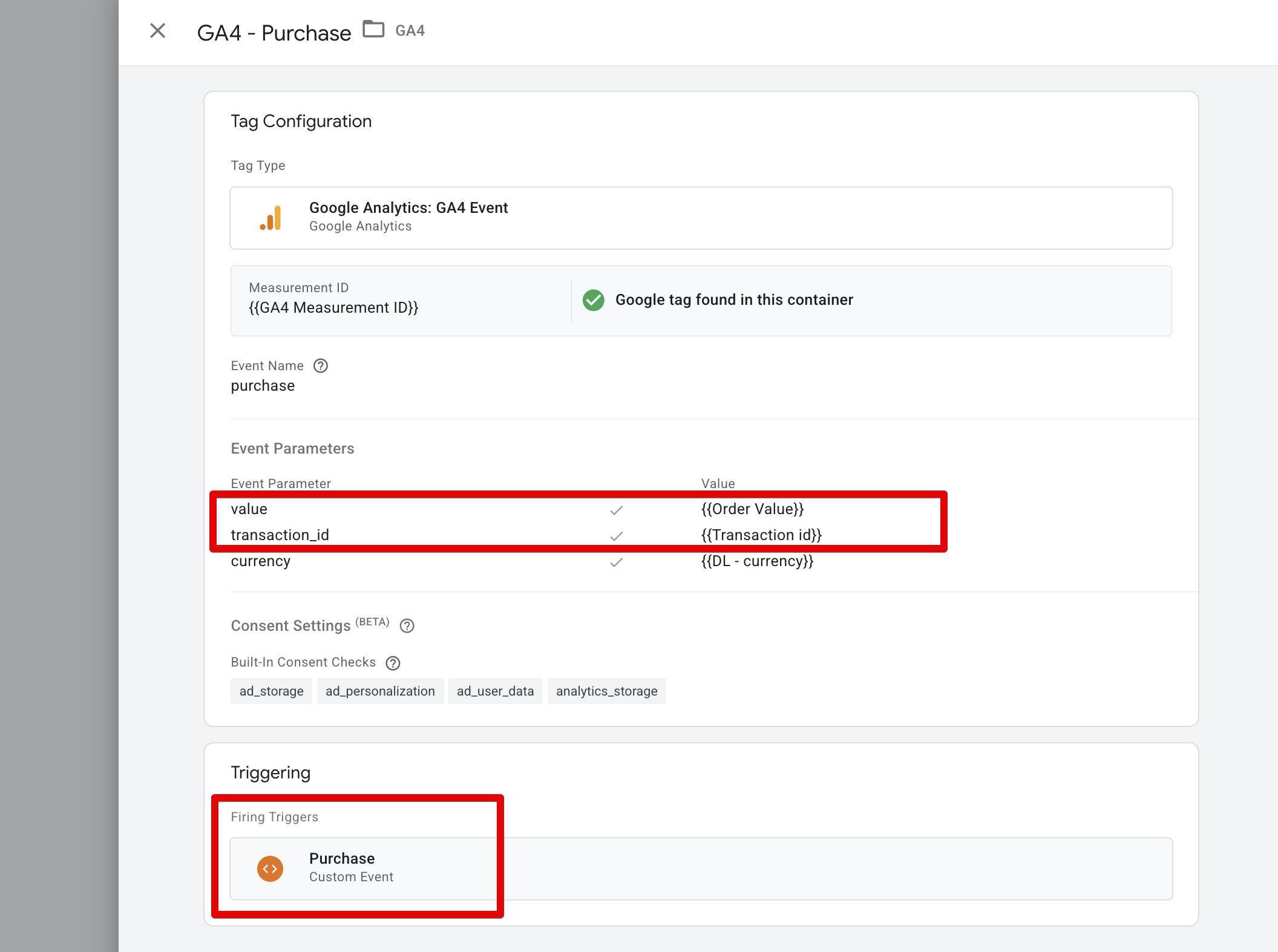
- Purchase (with order ID)
- Lead (no order ID)
- Signup (with value)
Replace
ORDER_ID and ORDER_VALUE with the variables used in your GA4 conversion tag.3
Set the trigger
Set the trigger for this tag to match the trigger used by your GA4 conversion tag.
4
Configure tag sequencing
In Tag Sequencing, make sure the SegmentStream SDK tag fires before this tag.
5
Save and publish
Save and publish the changes.
Implementation via SDK
You can trigger a conversion directly using the SDK method:Sending lead data to your CRM
When sending lead data from your website to your CRM, pass the user identifier provided by the SegmentStream SDK instead of using the_ga cookie value:
- If the user has consented to cookies, this method returns the
_gacookie value. - If the user has not consented, it returns a generated anonymous ID (instead of
null).
- If your CRM currently receives the
_gacookie value, replace it withwindow.segmentstream.anonymousId(). - If replacement is not possible, send the
anonymousId()value to a separate field in your CRM. - On the same page where the lead is sent to the CRM, call
window.segmentstream.conversion({ type: 'lead' }).
Verifying the SDK
1
Confirm the SDK ping
After page load, open the browser Network tab and look for a POST request to
https://track.segmentstream.com/ds/PROJECT_ID with eventName: "ping".2
Confirm click ID propagation
Open a page with a test click ID, such as
?gclid=test, then click an internal link. The click ID should remain in the URL after navigation.3
Confirm conversion tracking
Trigger the conversion action and look for a POST request to
https://track.segmentstream.com/ds/PROJECT_ID with eventName: "conversion" and conversionEventName matching the type value you passed to segmentstream.conversion().4
Check the console
The browser console should not show SegmentStream errors. If you see
SDK must be initialized with project_id, check that segmentstream.init("ID PROVIDED BY MANAGER") runs before conversion tracking.