> ## Documentation Index
> Fetch the complete documentation index at: https://docs.segmentstream.com/llms.txt
> Use this file to discover all available pages before exploring further.
# SegmentStream SDK
> Install the SegmentStream SDK to preserve click IDs, send cookieless pings, and enable privacy-safe conversion tracking.
The SegmentStream SDK adds a first-party measurement layer alongside GA4. It preserves ad platform click IDs during internal navigation, sends cookieless pings to SegmentStream, and can send conversion events through `segmentstream.conversion()`.
## What the SDK does
* **Click ID propagation**: preserves ad platform click IDs, such as `gclid`, `fbclid`, `ttclid`, `msclkid`, `li_fat_id`, `ScCid`, `rdt_cid`, `twclid`, `dclid`, and `epik`, across internal links, `window.open`, and History API navigation.
* **Cookieless pings**: sends page-load and first-interaction pings to SegmentStream without relying on analytics cookies.
* **Conversion tracking**: sends direct conversion events from the website through `segmentstream.conversion()`.
## Installing the SDK via GTM
In Google Tag Manager, go to **Tags** and click **New**.
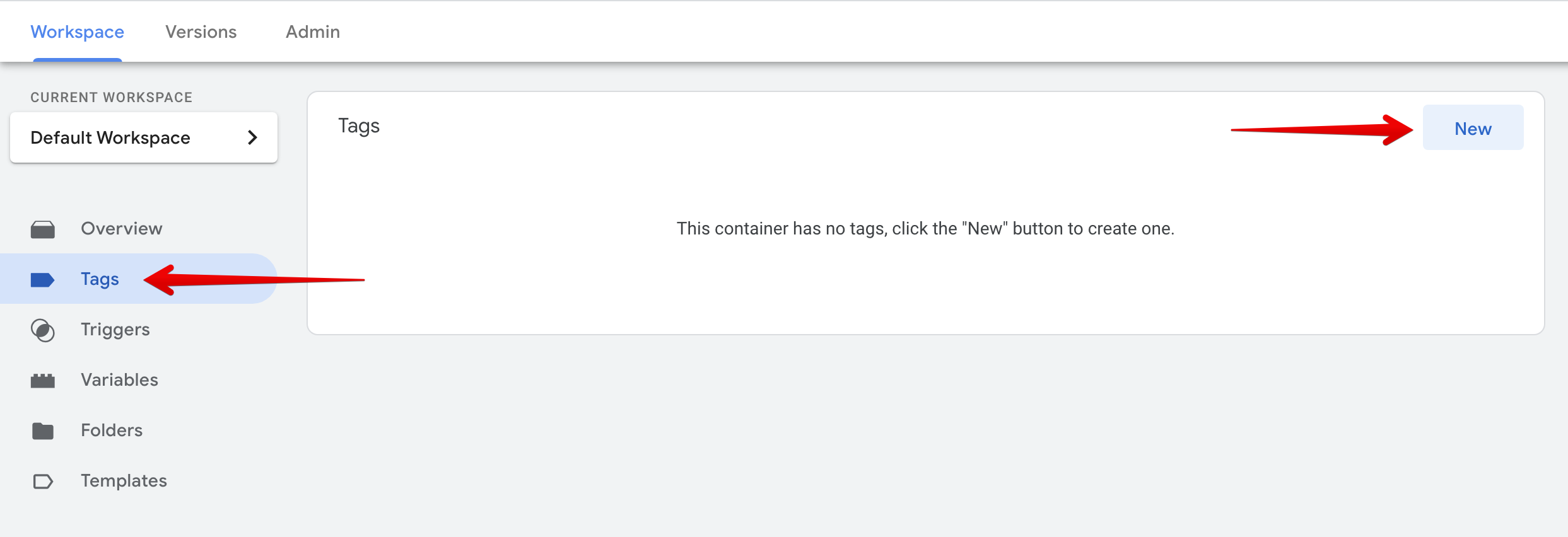 Name the tag **SegmentStream SDK** and choose the **Custom HTML** tag type.
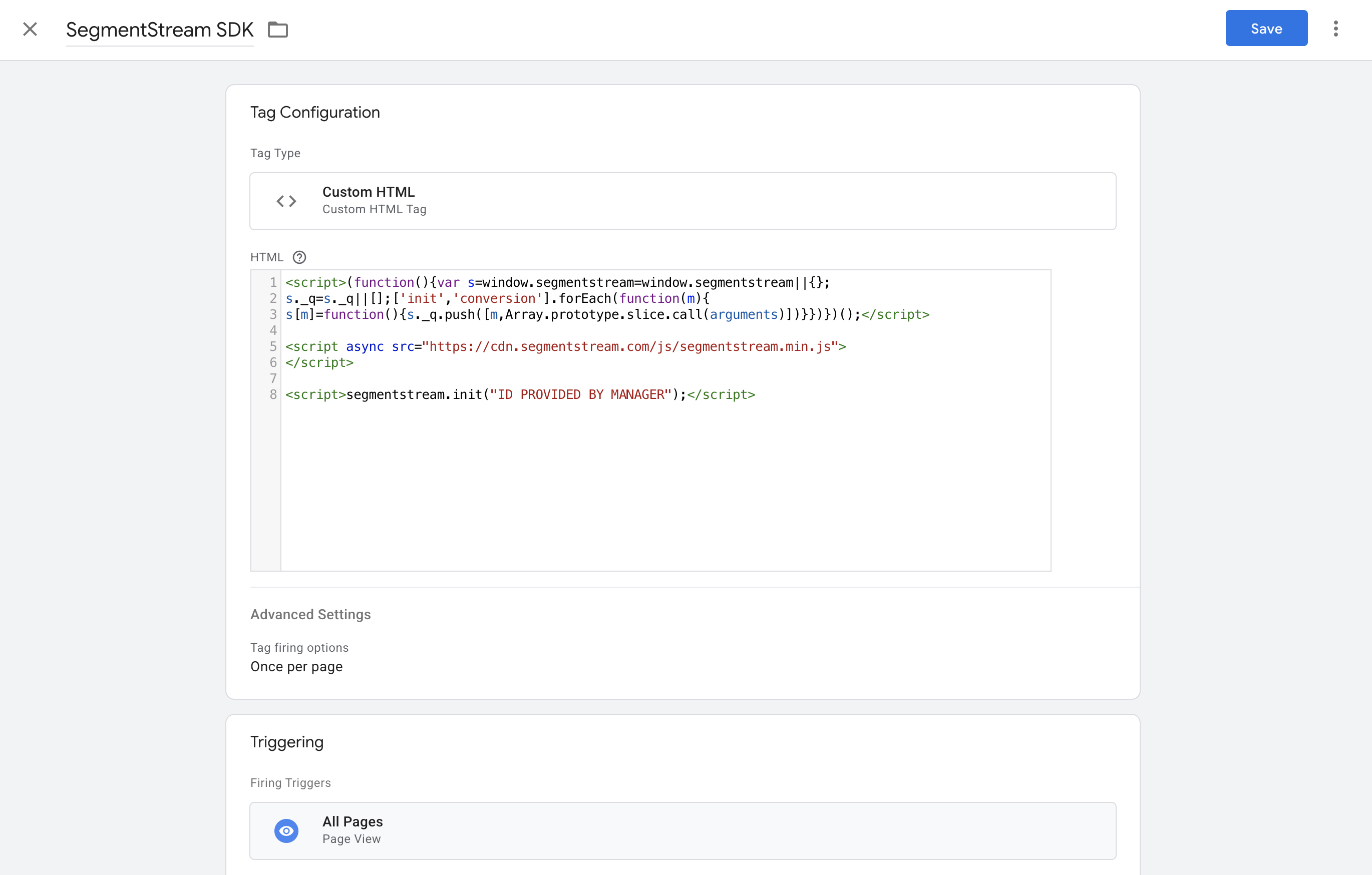
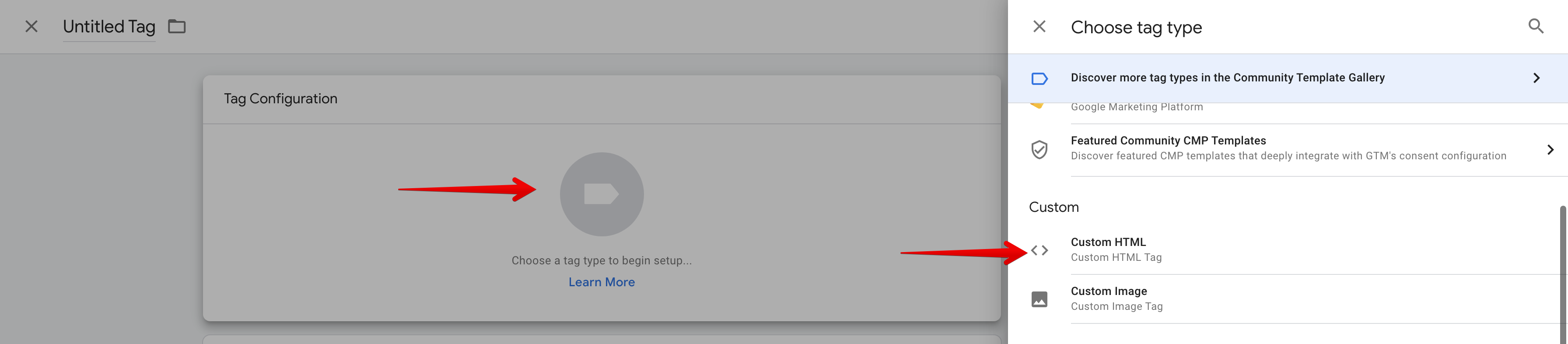 Enter the following code. Replace `ID PROVIDED BY MANAGER` with the ID provided by your SegmentStream account manager.
```html theme={null}
```
Expand **Advanced Settings** and select **Once per page** in **Tag firing options**.
Choose **All Pages** in the **Firing Triggers** option.
Enter the following code. Replace `ID PROVIDED BY MANAGER` with the ID provided by your SegmentStream account manager.
```html theme={null}
```
Expand **Advanced Settings** and select **Once per page** in **Tag firing options**.
Choose **All Pages** in the **Firing Triggers** option.
 ## Configuring SDK settings
By default, the SegmentStream SDK enables click ID propagation and cookieless pings. Browser storage is disabled unless you explicitly enable it.
Available settings:
| Setting | Default | Description |
| ---------------------- | ------: | -------------------------------------------------------------------------------------------------- |
| `click_id_propagation` | `true` | Preserves ad platform click IDs across internal links, `window.open`, and History API navigation. |
| `cookieless_pings` | `true` | Sends page-load and first-interaction pings to SegmentStream without relying on analytics cookies. |
| `local_storage` | `false` | Enables localStorage for attribution touchpoints and conversion deduplication state. |
Add the settings block before the SDK script only when you need to override the defaults:
```html theme={null}
```
Enable `local_storage` only when your consent and privacy setup allows browser storage. When `local_storage` is `false`, the SDK does not store attribution touchpoints or conversion deduplication state in the browser.
## Aggregated conversions measurement
The SegmentStream SDK supports conversion tracking through a strict object API. Use it when you need SegmentStream to receive a direct conversion signal from the website, such as a purchase, lead, signup, or subscription.
### Implementation through GTM
In Google Tag Manager, go to **Tags**, click **New**, name the tag **SegmentStream Conversion Tracking**, and choose the **Custom HTML** tag type.
In the HTML block, insert the appropriate code for your conversion type:
Replace `ORDER_ID` and `ORDER_VALUE` with the variables used in your GA4 conversion tag.
```html theme={null}
```
```html theme={null}
```
```html theme={null}
```
## Configuring SDK settings
By default, the SegmentStream SDK enables click ID propagation and cookieless pings. Browser storage is disabled unless you explicitly enable it.
Available settings:
| Setting | Default | Description |
| ---------------------- | ------: | -------------------------------------------------------------------------------------------------- |
| `click_id_propagation` | `true` | Preserves ad platform click IDs across internal links, `window.open`, and History API navigation. |
| `cookieless_pings` | `true` | Sends page-load and first-interaction pings to SegmentStream without relying on analytics cookies. |
| `local_storage` | `false` | Enables localStorage for attribution touchpoints and conversion deduplication state. |
Add the settings block before the SDK script only when you need to override the defaults:
```html theme={null}
```
Enable `local_storage` only when your consent and privacy setup allows browser storage. When `local_storage` is `false`, the SDK does not store attribution touchpoints or conversion deduplication state in the browser.
## Aggregated conversions measurement
The SegmentStream SDK supports conversion tracking through a strict object API. Use it when you need SegmentStream to receive a direct conversion signal from the website, such as a purchase, lead, signup, or subscription.
### Implementation through GTM
In Google Tag Manager, go to **Tags**, click **New**, name the tag **SegmentStream Conversion Tracking**, and choose the **Custom HTML** tag type.
In the HTML block, insert the appropriate code for your conversion type:
Replace `ORDER_ID` and `ORDER_VALUE` with the variables used in your GA4 conversion tag.
```html theme={null}
```
```html theme={null}
```
```html theme={null}
```
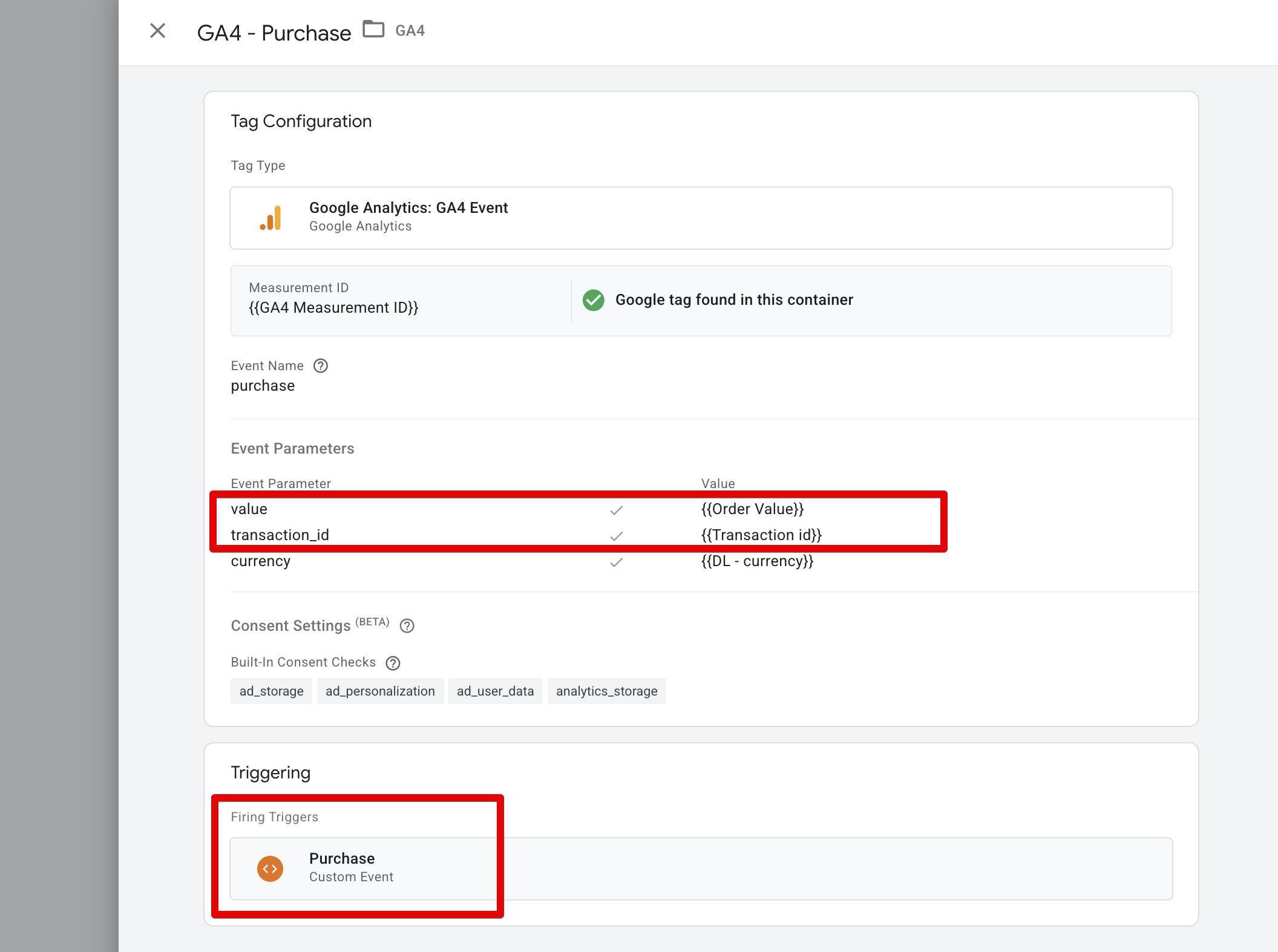 Set the trigger for this tag to match the trigger used by your GA4 conversion tag.
In **Tag Sequencing**, make sure the **SegmentStream SDK** tag fires **before** this tag.
Save and publish the changes.
### Implementation via SDK
You can trigger a conversion directly using the SDK method:
```javascript theme={null}
segmentstream.conversion({
type: 'purchase', // Required: event type, such as 'purchase', 'lead', or 'signup'
id: 'ORDER_ID', // Optional: unique identifier for the conversion
value: ORDER_VALUE, // Optional: numeric value of the conversion
currency: 'USD' // Optional: currency code
});
```
**Examples:**
```javascript Purchase theme={null}
segmentstream.conversion({
type: 'purchase',
id: 'ORD-12345',
value: 199.99,
currency: 'USD'
});
```
```javascript Lead theme={null}
segmentstream.conversion({
type: 'lead'
});
```
```javascript Subscription theme={null}
segmentstream.conversion({
id: 'SUB-67890',
type: 'subscription'
});
```
This function should be called on the conversion confirmation page, such as the order success or thank-you page, after the SegmentStream SDK is initialised.
### Sending lead data to your CRM
When sending lead data from your website to your CRM, pass the user identifier provided by the SegmentStream SDK instead of using the `_ga` cookie value:
```javascript theme={null}
window.segmentstream.anonymousId()
```
* If the user has consented to cookies, this method returns the `_ga` cookie value.
* If the user has **not** consented, it returns a generated anonymous ID (instead of `null`).
This approach ensures that SegmentStream's aggregated attribution works for both consented and non-consented users.
**How to implement:**
1. If your CRM currently receives the `_ga` cookie value, replace it with `window.segmentstream.anonymousId()`.
2. If replacement is not possible, send the `anonymousId()` value to a separate field in your CRM.
3. On the same page where the lead is sent to the CRM, call `window.segmentstream.conversion({ type: 'lead' })`.
Calling the conversion method on a different page (for example, a redirect page after the lead is sent) will not work for aggregated conversion attribution. The call must happen on the same page where the lead is submitted.
```javascript theme={null}
// Send data to the CRM
const clientId = window.segmentstream.anonymousId();
sendLeadToCRM({
name: leadName,
email: leadEmail,
clientId: clientId
});
// Send data to SegmentStream
window.segmentstream.conversion({
type: 'lead'
});
```
## Verifying the SDK
After page load, open the browser Network tab and look for a POST request to `https://track.segmentstream.com/ds/PROJECT_ID` with `eventName: "ping"`.
Open a page with a test click ID, such as `?gclid=test`, then click an internal link. The click ID should remain in the URL after navigation.
Trigger the conversion action and look for a POST request to `https://track.segmentstream.com/ds/PROJECT_ID` with `eventName: "conversion"` and `conversionEventName` matching the `type` value you passed to `segmentstream.conversion()`.
The browser console should not show SegmentStream errors. If you see `SDK must be initialized with project_id`, check that `segmentstream.init("ID PROVIDED BY MANAGER")` runs before conversion tracking.
Set the trigger for this tag to match the trigger used by your GA4 conversion tag.
In **Tag Sequencing**, make sure the **SegmentStream SDK** tag fires **before** this tag.
Save and publish the changes.
### Implementation via SDK
You can trigger a conversion directly using the SDK method:
```javascript theme={null}
segmentstream.conversion({
type: 'purchase', // Required: event type, such as 'purchase', 'lead', or 'signup'
id: 'ORDER_ID', // Optional: unique identifier for the conversion
value: ORDER_VALUE, // Optional: numeric value of the conversion
currency: 'USD' // Optional: currency code
});
```
**Examples:**
```javascript Purchase theme={null}
segmentstream.conversion({
type: 'purchase',
id: 'ORD-12345',
value: 199.99,
currency: 'USD'
});
```
```javascript Lead theme={null}
segmentstream.conversion({
type: 'lead'
});
```
```javascript Subscription theme={null}
segmentstream.conversion({
id: 'SUB-67890',
type: 'subscription'
});
```
This function should be called on the conversion confirmation page, such as the order success or thank-you page, after the SegmentStream SDK is initialised.
### Sending lead data to your CRM
When sending lead data from your website to your CRM, pass the user identifier provided by the SegmentStream SDK instead of using the `_ga` cookie value:
```javascript theme={null}
window.segmentstream.anonymousId()
```
* If the user has consented to cookies, this method returns the `_ga` cookie value.
* If the user has **not** consented, it returns a generated anonymous ID (instead of `null`).
This approach ensures that SegmentStream's aggregated attribution works for both consented and non-consented users.
**How to implement:**
1. If your CRM currently receives the `_ga` cookie value, replace it with `window.segmentstream.anonymousId()`.
2. If replacement is not possible, send the `anonymousId()` value to a separate field in your CRM.
3. On the same page where the lead is sent to the CRM, call `window.segmentstream.conversion({ type: 'lead' })`.
Calling the conversion method on a different page (for example, a redirect page after the lead is sent) will not work for aggregated conversion attribution. The call must happen on the same page where the lead is submitted.
```javascript theme={null}
// Send data to the CRM
const clientId = window.segmentstream.anonymousId();
sendLeadToCRM({
name: leadName,
email: leadEmail,
clientId: clientId
});
// Send data to SegmentStream
window.segmentstream.conversion({
type: 'lead'
});
```
## Verifying the SDK
After page load, open the browser Network tab and look for a POST request to `https://track.segmentstream.com/ds/PROJECT_ID` with `eventName: "ping"`.
Open a page with a test click ID, such as `?gclid=test`, then click an internal link. The click ID should remain in the URL after navigation.
Trigger the conversion action and look for a POST request to `https://track.segmentstream.com/ds/PROJECT_ID` with `eventName: "conversion"` and `conversionEventName` matching the `type` value you passed to `segmentstream.conversion()`.
The browser console should not show SegmentStream errors. If you see `SDK must be initialized with project_id`, check that `segmentstream.init("ID PROVIDED BY MANAGER")` runs before conversion tracking.