> ## Documentation Index
> Fetch the complete documentation index at: https://docs.segmentstream.com/llms.txt
> Use this file to discover all available pages before exploring further.
# Cross-device tracking via email hash (GTM)
> Implement ehash-based cross-device tracking using Google Tag Manager to enable session stitching in GA4 for SegmentStream attribution.
This guide explains how to implement `ehash` -- a hashed version of a user's email address -- as a user identifier to enable cross-device tracking and session stitching in GA4.
By hashing email addresses collected on-site and sending them as an event parameter (`ehash`) to GA4, you can help SegmentStream's identity graph more accurately associate sessions and users across devices and channels.
To support this:
* All links in marketing emails should include the `ehash` parameter in the URL.
* All email addresses captured onsite (e.g., during checkout or signup) must be hashed client-side and sent to GA4 as event parameters.
You don't need to implement every step at once -- each part of the setup provides value on its own. For example, capturing ehash from forms now allows you to start tracking, and adding the parameter to email links can be done later.
This guide outlines all the steps required to fully enable `ehash` based cross-device tracking.
***
## Add `ehash` to email links
When a user submits their email on your site:
* Generate a hash (e.g., using `SHA-256`).
* Store it in your backend.
* Include the hashed email as a query parameter in all email links:
```
https://www.example.com/landing-page?ehash=hashedemail123
```
This allows you to recognise and associate users on different devices when they click through from an email.
When a user lands on your site with an `ehash` parameter in the URL, SegmentStream automatically captures it -- no additional GTM or GA4 configuration is needed for this step.
***
## Capture and hash emails from on-site forms
When a user submits an email (e.g., through a popup or signup form), send an event to GA4 along with the ehash event parameter by following these steps:
Ask your developers to push an event into the `dataLayer` that includes the `ehash` value whenever a form with an email is submitted, or add the `ehash` parameter to existing dataLayer events that are already sent on form submission, for example:
```javascript theme={null}
dataLayer.push({
event: "email_form_submitted",
ehash: ""
});
```
Inside your GTM, create a Data Layer Variable for `ehash`:
1. Go to **Variables** then **New**
2. Name: `DLV - ehash`
3. Type: **Data Layer Variable**
4. Data Layer Variable Name: `ehash`
 If the dataLayer event is already tracked, skip this step. Otherwise, create a GTM Trigger for the event (in this example, `email_form_submitted`):
1. Go to **Triggers** then **New**
2. Name: `Trigger - email_form_submitted`
3. Trigger Type: **Custom Event**
4. Event name: `email_form_submitted`
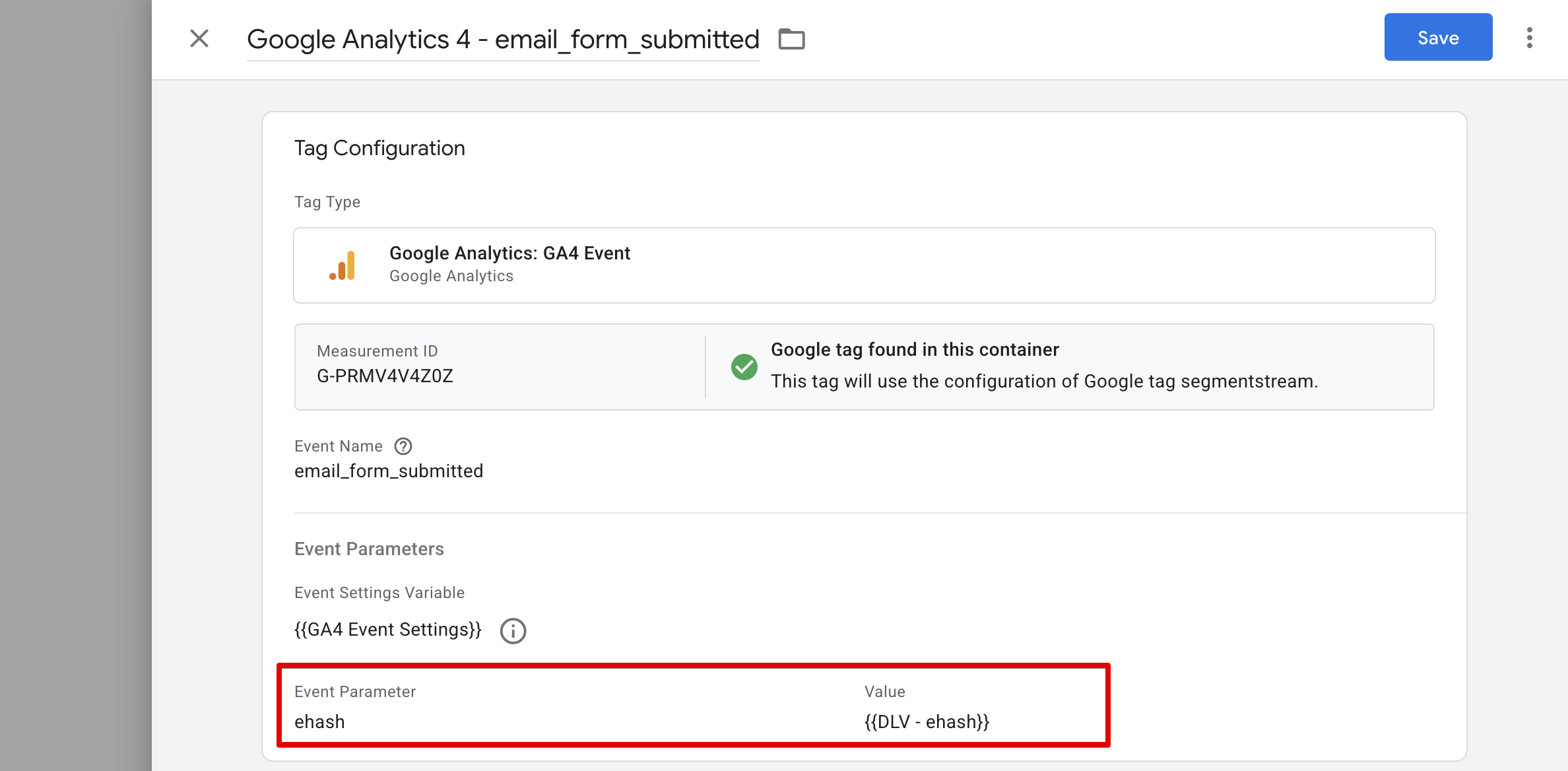
If the event is already tracked in GA4, skip this step. Otherwise, create a GA4 tag to send the event:
1. Go to **Tags** then **New**
2. Name: `GA4 - email_form_submitted`
3. Tag Type: **Google Analytics: GA4 Event**
4. Configuration Tag: Select your existing GA4 config tag
5. Event Name: `email_form_submitted`
6. Triggering: `Trigger - email_form_submitted`
In the event that is tracking the form submission, edit the Event Parameters to add:
* Name: `ehash`
* Value: `{{DLV - ehash}}`
If the dataLayer event is already tracked, skip this step. Otherwise, create a GTM Trigger for the event (in this example, `email_form_submitted`):
1. Go to **Triggers** then **New**
2. Name: `Trigger - email_form_submitted`
3. Trigger Type: **Custom Event**
4. Event name: `email_form_submitted`
If the event is already tracked in GA4, skip this step. Otherwise, create a GA4 tag to send the event:
1. Go to **Tags** then **New**
2. Name: `GA4 - email_form_submitted`
3. Tag Type: **Google Analytics: GA4 Event**
4. Configuration Tag: Select your existing GA4 config tag
5. Event Name: `email_form_submitted`
6. Triggering: `Trigger - email_form_submitted`
In the event that is tracking the form submission, edit the Event Parameters to add:
* Name: `ehash`
* Value: `{{DLV - ehash}}`
 Save and publish the container.
This ensures the `ehash` parameter is sent to GA4 when a user subscribes to the newsletter. SegmentStream can then automatically match the user if they later click a newsletter link containing the same `ehash`, linking it back to the original subscription device.
***
## Capture and hash email on checkout
Send an event to GA4 along with the ehash event parameter with the purchase event by following these steps:
Ask your developers to include the `ehash` parameter in the `purchase` event pushed to the `dataLayer` when a transaction is completed and the user's email is available.
```javascript theme={null}
dataLayer.push({
event: "purchase",
ehash: "",
ecommerce: {
transaction_id: "T12345",
value: 59.99,
currency: "USD",
items: [
{
item_id: "SKU_123",
item_name: "Wireless Mouse",
price: 29.99,
quantity: 2
}
]
}
});
```
Inside your GTM create a Data Layer Variable for `ehash` (if not already created):
1. Go to **Variables** then **New**
2. Name: `DLV - ehash`
3. Type: **Data Layer Variable**
4. Data Layer Variable Name: `ehash`
Open the GA4 Tag that is tracking the `purchase` event and edit the Event Parameters to add:
* Name: `ehash`
* Value: `{{DLV - ehash}}`
Save and publish the container.
This ensures the `ehash` parameter is sent to GA4 when a user subscribes to the newsletter. SegmentStream can then automatically match the user if they later click a newsletter link containing the same `ehash`, linking it back to the original subscription device.
***
## Capture and hash email on checkout
Send an event to GA4 along with the ehash event parameter with the purchase event by following these steps:
Ask your developers to include the `ehash` parameter in the `purchase` event pushed to the `dataLayer` when a transaction is completed and the user's email is available.
```javascript theme={null}
dataLayer.push({
event: "purchase",
ehash: "",
ecommerce: {
transaction_id: "T12345",
value: 59.99,
currency: "USD",
items: [
{
item_id: "SKU_123",
item_name: "Wireless Mouse",
price: 29.99,
quantity: 2
}
]
}
});
```
Inside your GTM create a Data Layer Variable for `ehash` (if not already created):
1. Go to **Variables** then **New**
2. Name: `DLV - ehash`
3. Type: **Data Layer Variable**
4. Data Layer Variable Name: `ehash`
Open the GA4 Tag that is tracking the `purchase` event and edit the Event Parameters to add:
* Name: `ehash`
* Value: `{{DLV - ehash}}`
 Save and publish the container.
By capturing and hashing the email at both the subscription and checkout stages, SegmentStream can reconstruct the full user journey and attribute value accurately to each marketing interaction the user had before converting.
Save and publish the container.
By capturing and hashing the email at both the subscription and checkout stages, SegmentStream can reconstruct the full user journey and attribute value accurately to each marketing interaction the user had before converting.