> ## Documentation Index
> Fetch the complete documentation index at: https://docs.segmentstream.com/llms.txt
> Use this file to discover all available pages before exploring further.
# LinkedIn conversions export
> Export SegmentStream conversions to your LinkedIn ad account for improved targeting and measurement.
Inside the admin panel, go to the **Conversions** page and select the conversion you want to export to your LinkedIn ad account.
In the conversion menu, click **Add Export**.
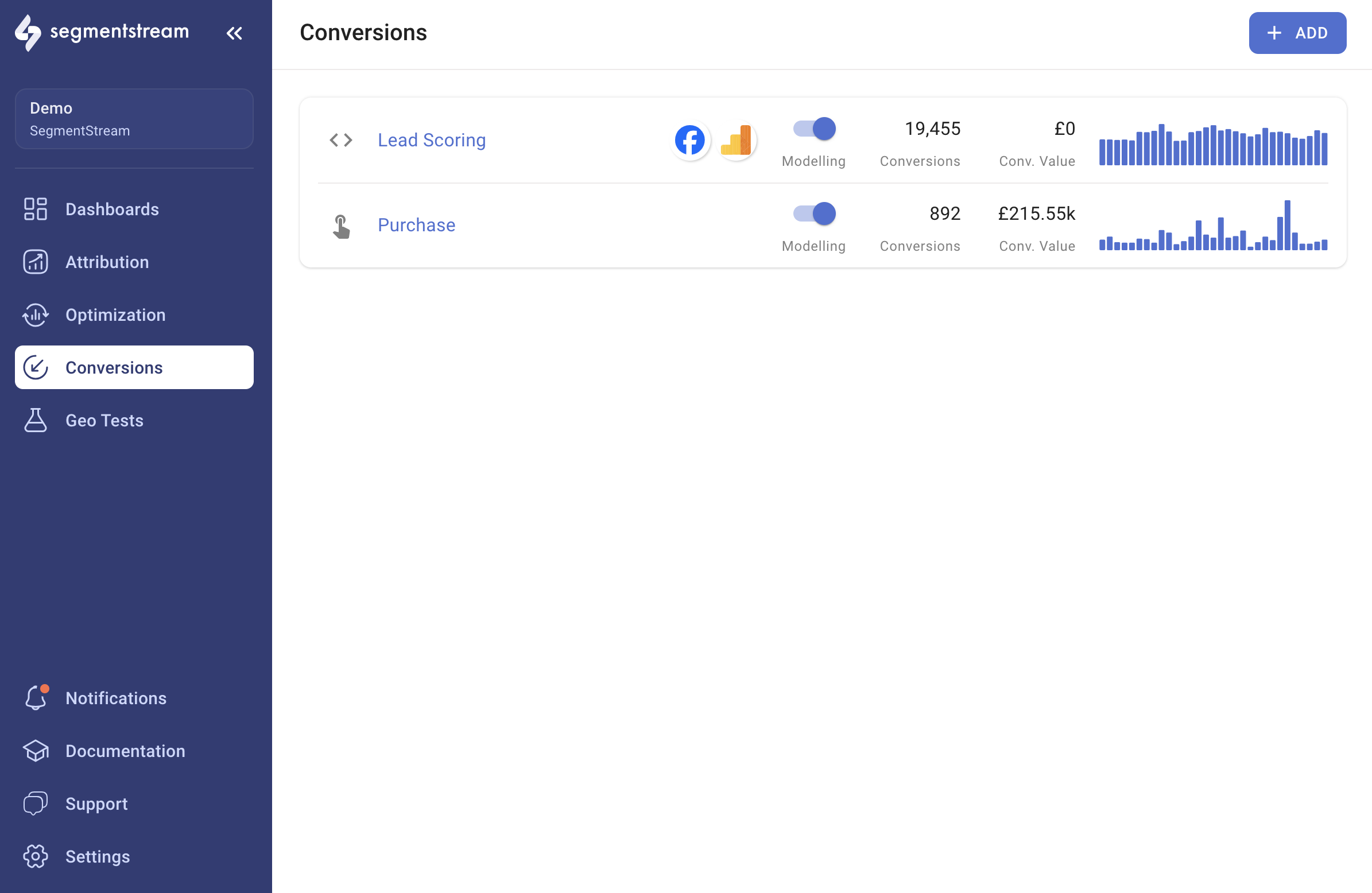 Select **LinkedIn** in the window that opens and go through the authentication flow.
After the authentication flow, you should see the LinkedIn export settings.
* Select your **LinkedIn Account**.
* Select the **LinkedIn Conversion** where the conversions will be exported to.
* Choose whether to enable **Enhanced Tracking**, which exports additional user data such as email, name, and other details if available in the conversion data.
* Choose whether to enable **Retrospective Updates**, which allows exporting conversions retroactively within the set lookback window. This is useful when conversions are exported from your CRM, particularly when conversions are validated several days after they occur.
Click **Save**. Conversions will be automatically exported to LinkedIn daily after data processing for the previous day is completed.
It might take up to 24 hours before you see the first batch of events from SegmentStream within your LinkedIn reports.
Select **LinkedIn** in the window that opens and go through the authentication flow.
After the authentication flow, you should see the LinkedIn export settings.
* Select your **LinkedIn Account**.
* Select the **LinkedIn Conversion** where the conversions will be exported to.
* Choose whether to enable **Enhanced Tracking**, which exports additional user data such as email, name, and other details if available in the conversion data.
* Choose whether to enable **Retrospective Updates**, which allows exporting conversions retroactively within the set lookback window. This is useful when conversions are exported from your CRM, particularly when conversions are validated several days after they occur.
Click **Save**. Conversions will be automatically exported to LinkedIn daily after data processing for the previous day is completed.
It might take up to 24 hours before you see the first batch of events from SegmentStream within your LinkedIn reports.