> ## Documentation Index
> Fetch the complete documentation index at: https://docs.segmentstream.com/llms.txt
> Use this file to discover all available pages before exploring further.
# Google Ads conversions export
> Export SegmentStream conversions to Google Ads for bidding optimization and enhanced conversion tracking.
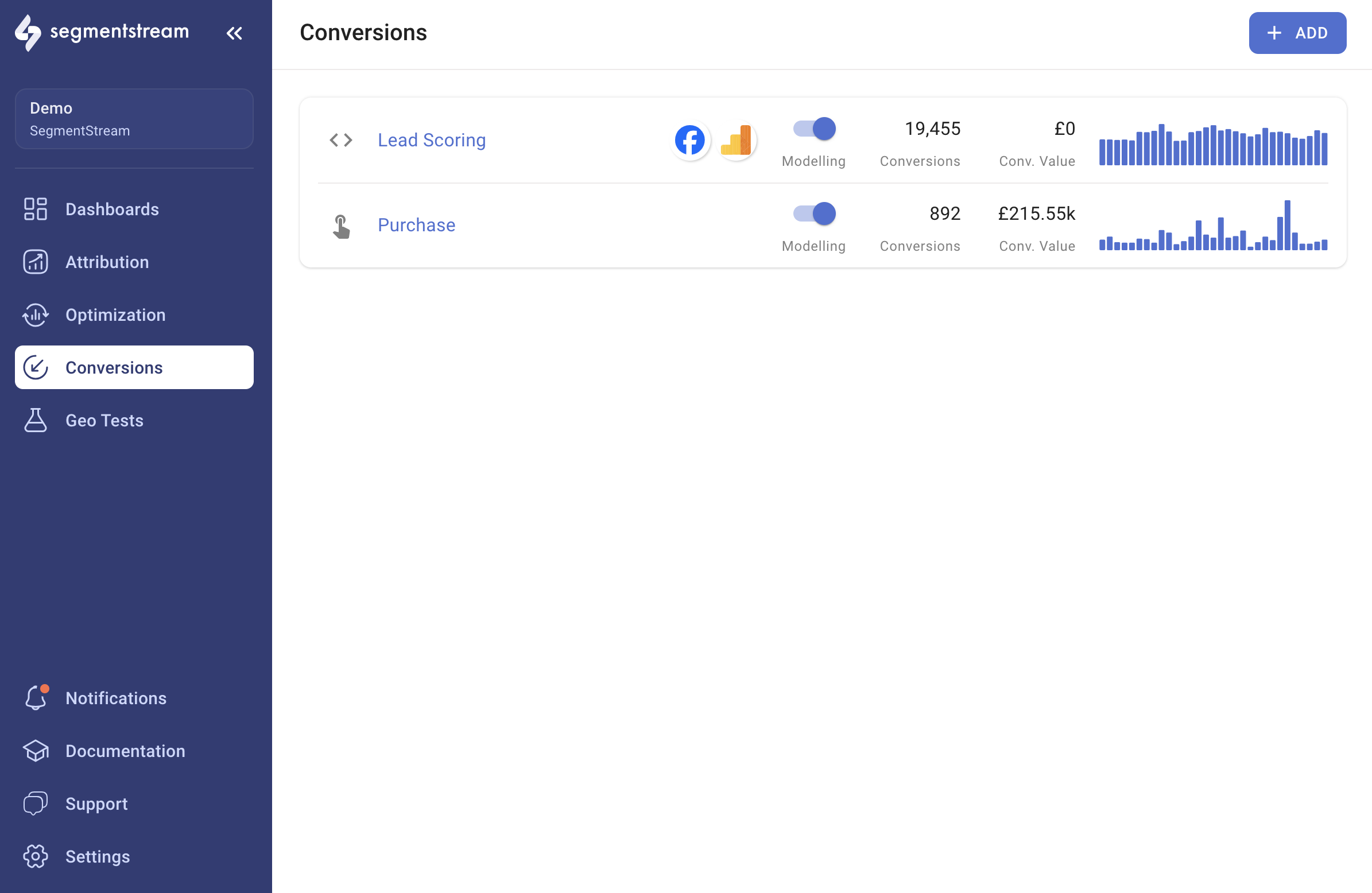
Inside the admin panel, go to the **Conversions** page and select the conversion that you want to export from the list.
In the conversion menu, click **Add Export**.
 Select **Google Ads** in the window that opens and go through the authentication flow.
After the authentication flow, you should see the Google Ads export settings.
* Select your advertising account and a conversion action that you have created. You can also create a new conversion action by selecting the option in the conversion action dropdown.
* The attribution window will be set to the value you selected when creating the conversion action, but can be shortened if necessary.
Click **Save**. Conversions will be automatically exported to Google Ads daily after data processing for the previous day is completed.
The first conversions will be uploaded at least 6 hours after the conversion is initially created in the Google Ads UI.
## Enhanced tracking
Enabling this feature allows SegmentStream to use the **Google Ads Enhanced conversions for leads** feature, an advanced version of offline conversion import. This method leverages user-provided data (such as email addresses) to supplement imported offline conversions, improving both attribution accuracy and bidding performance.
### Information SegmentStream can send
* **ip\_address** (single value, IPv4/IPv6, not available in UK/EU/CH)
* **hashed\_email\_addresses** (SHA256)
* **hashed\_phone\_number** (SHA256)
* **hashed address data** including `hashedFirstName`, `hashedLastName`
To use Enhanced Tracking in SegmentStream, you must first accept **Customer data terms** and enable **Enhanced conversions for leads** in your Google Ads account.
### How to enable Enhanced conversions for leads
In your Google Ads account, go to **Goals** > **Settings**.
Expand the **Customer data terms** section and accept the terms.
Expand the **Enhanced conversions for leads** section and toggle the feature **On**.
Select the method for providing user data. If your GA4 is implemented through GTM, choose the corresponding option.
Click **Save**.
After completing these steps in Google Ads, enable **Enhanced Tracking** in SegmentStream. It may take up to 10 minutes before SegmentStream allows you to save the Enhanced Tracking conversion export due to Google Ads API delays.
## Retrospective updates
When this feature is enabled, conversions will be updated if their attribution data changes after the initial tracking. This is useful when conversion data is delayed -- for example, when a user makes a purchase online but the transaction is finalized several days later after offline confirmation.
## Use imported conversions for optimization
You can use the imported conversion for bidding optimization at either the account-default or campaign-specific level.
After confirming that data is flowing correctly, go to the **Conversions** section within **Tools & Settings** > **Measurement** in your Google Ads account.
Click on the **imported Conversion action** in the list.
Click on **Edit settings**.
Expand the **Goal and optimisation action** section and switch the optimisation action to **"Primary action used for bidding optimisation"**.
Click **Save**. All campaigns using account-default conversion goals will be optimized toward the imported conversion action.
If you exported a combined SegmentStream conversion, make sure that all website conversions already included in it (for example, Website Purchase) are switched to **Secondary action not used for bidding optimisation** to avoid conversion duplication.
After confirming that data is flowing correctly, go to the **Conversions** section within **Tools & Settings** > **Measurement** in your Google Ads account.
Scroll down to the **Custom goals** section, expand it, and click **Add custom goal**.
Specify the name and **choose the imported conversion action** from the list. Click **Save**.
Navigate to the campaign settings and expand the **Goals** section. Click on **Use campaign-specific goal settings** and choose the custom goal from the list.
Click **Save**.
You can choose only one custom goal as a campaign-specific goal. If you want to use several custom goals within one campaign, create an additional custom goal for the combination of the needed conversion actions and use it as a campaign-specific goal.
Select **Google Ads** in the window that opens and go through the authentication flow.
After the authentication flow, you should see the Google Ads export settings.
* Select your advertising account and a conversion action that you have created. You can also create a new conversion action by selecting the option in the conversion action dropdown.
* The attribution window will be set to the value you selected when creating the conversion action, but can be shortened if necessary.
Click **Save**. Conversions will be automatically exported to Google Ads daily after data processing for the previous day is completed.
The first conversions will be uploaded at least 6 hours after the conversion is initially created in the Google Ads UI.
## Enhanced tracking
Enabling this feature allows SegmentStream to use the **Google Ads Enhanced conversions for leads** feature, an advanced version of offline conversion import. This method leverages user-provided data (such as email addresses) to supplement imported offline conversions, improving both attribution accuracy and bidding performance.
### Information SegmentStream can send
* **ip\_address** (single value, IPv4/IPv6, not available in UK/EU/CH)
* **hashed\_email\_addresses** (SHA256)
* **hashed\_phone\_number** (SHA256)
* **hashed address data** including `hashedFirstName`, `hashedLastName`
To use Enhanced Tracking in SegmentStream, you must first accept **Customer data terms** and enable **Enhanced conversions for leads** in your Google Ads account.
### How to enable Enhanced conversions for leads
In your Google Ads account, go to **Goals** > **Settings**.
Expand the **Customer data terms** section and accept the terms.
Expand the **Enhanced conversions for leads** section and toggle the feature **On**.
Select the method for providing user data. If your GA4 is implemented through GTM, choose the corresponding option.
Click **Save**.
After completing these steps in Google Ads, enable **Enhanced Tracking** in SegmentStream. It may take up to 10 minutes before SegmentStream allows you to save the Enhanced Tracking conversion export due to Google Ads API delays.
## Retrospective updates
When this feature is enabled, conversions will be updated if their attribution data changes after the initial tracking. This is useful when conversion data is delayed -- for example, when a user makes a purchase online but the transaction is finalized several days later after offline confirmation.
## Use imported conversions for optimization
You can use the imported conversion for bidding optimization at either the account-default or campaign-specific level.
After confirming that data is flowing correctly, go to the **Conversions** section within **Tools & Settings** > **Measurement** in your Google Ads account.
Click on the **imported Conversion action** in the list.
Click on **Edit settings**.
Expand the **Goal and optimisation action** section and switch the optimisation action to **"Primary action used for bidding optimisation"**.
Click **Save**. All campaigns using account-default conversion goals will be optimized toward the imported conversion action.
If you exported a combined SegmentStream conversion, make sure that all website conversions already included in it (for example, Website Purchase) are switched to **Secondary action not used for bidding optimisation** to avoid conversion duplication.
After confirming that data is flowing correctly, go to the **Conversions** section within **Tools & Settings** > **Measurement** in your Google Ads account.
Scroll down to the **Custom goals** section, expand it, and click **Add custom goal**.
Specify the name and **choose the imported conversion action** from the list. Click **Save**.
Navigate to the campaign settings and expand the **Goals** section. Click on **Use campaign-specific goal settings** and choose the custom goal from the list.
Click **Save**.
You can choose only one custom goal as a campaign-specific goal. If you want to use several custom goals within one campaign, create an additional custom goal for the combination of the needed conversion actions and use it as a campaign-specific goal.