> ## Documentation Index
> Fetch the complete documentation index at: https://docs.segmentstream.com/llms.txt
> Use this file to discover all available pages before exploring further.
# Facebook conversions export
> Export SegmentStream conversions to your Facebook pixel for improved ad targeting and measurement.
Inside the admin panel, go to the **Conversions** page and select the conversion you want to export as an event to your Facebook pixel.
In the conversion menu, click **Add Export**.
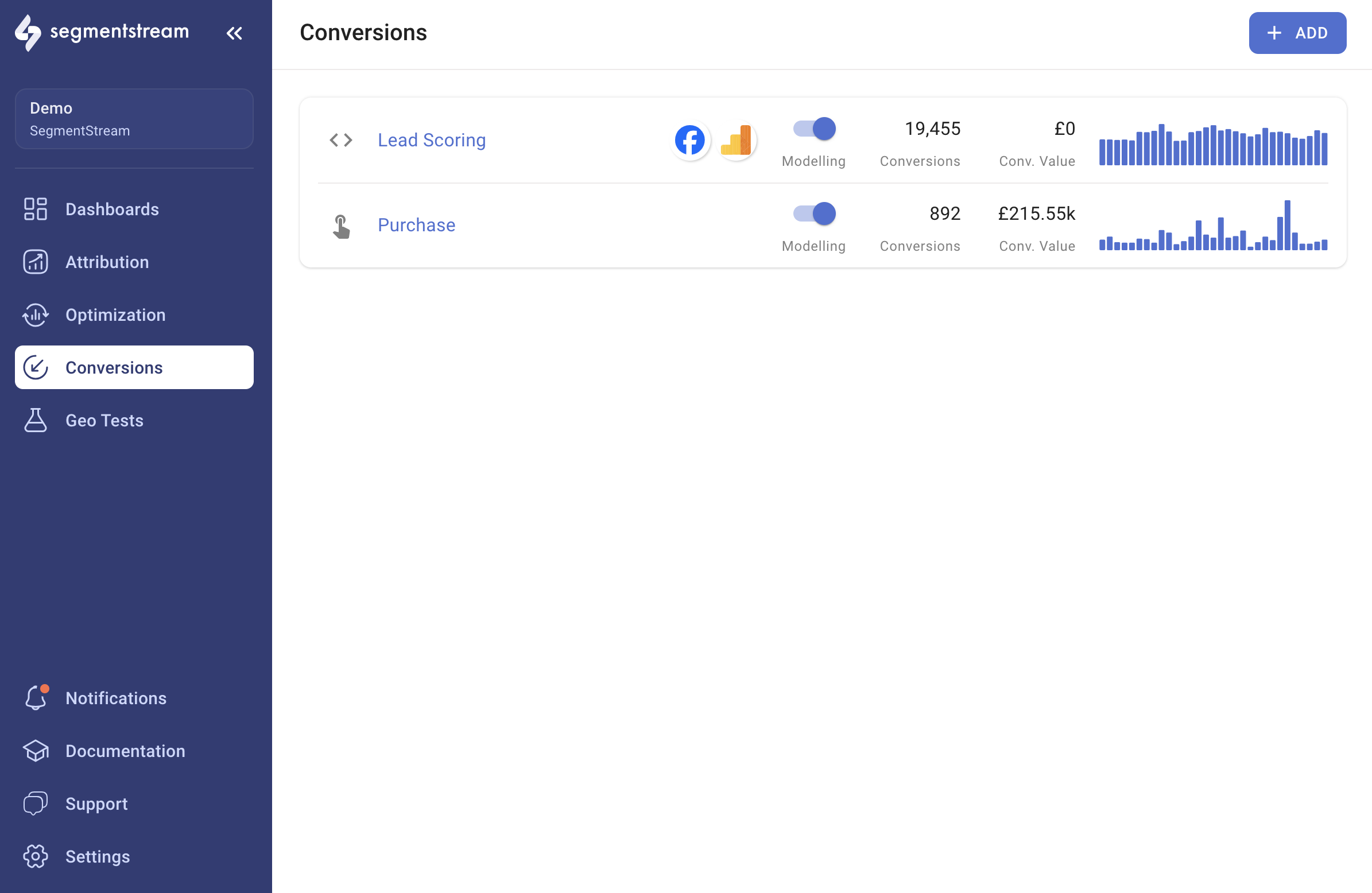 Select **Facebook** in the window that opens and go through the authentication flow.
After the authentication flow, you should see the Facebook export settings.
* Enter your **Pixel ID** (which can be found inside the [Facebook Events Manager](https://www.facebook.com/events_manager2/)).
* Fill in the **Event name** for each conversion. We recommend keeping the event name the same as your conversion name within SegmentStream.
* Choose whether to enable **Enhanced Tracking**, which exports additional user data such as email, name, and other details if available in the conversion data.
* Choose whether to enable **Retrospective Updates**, which allows exporting conversions retroactively within the set lookback window. This is useful when conversions are exported from your CRM, particularly when conversions are validated several days after they occur.
Click **Save**. Conversions will be automatically exported to Facebook daily after data processing for the previous day is completed.
It might take up to 1 hour before you see the first batch of events from SegmentStream.
## Cookies custom fields setup
By default, Google Analytics 4 does not collect data about first-party cookies like `_fbp`. This cookie is required to send additional data through server-side conversion tracking.
Inside your Google Tag Manager, go to **Variables**, click **New**, and choose the **1st Party Cookie** variable type from the list.
Name your variable `fbp`, enter `_fbp` in the **Cookie Name** field, and click **Save**.
Open your **Google Tag**, click **Add parameter** in the **Event Parameter** field, and enter the parameter `fbp` with the value `{{fbp}}`.
Click **Save** and **Publish** the container.
1. Define a global function that dynamically gets the cookie value:
```javascript theme={null}
function getFbpCookie() {
try {
return /_fbp=(fb\.1\.\d+\.\d+)/.exec(window.document.cookie)[1];
} catch (e) {
return undefined;
}
}
```
It is important to use a function instead of saving to a global variable because sometimes the cookie value might not be available yet (for example, the Facebook Pixel SDK has not loaded).
2. Add the parameter to your gtag config call:
```javascript theme={null}
gtag('config', 'G-XXXXXXXXXX', {
fbp: getFbpCookie(),
// other params...
});
```
3. **Optional**. Add the parameter to all other events:
```javascript theme={null}
gtag('event', '', {
fbp: getFbpCookie(),
// other params...
});
```
Adding parameters to events may improve tracking in case your gtag config call was triggered before cookies were set.
Select **Facebook** in the window that opens and go through the authentication flow.
After the authentication flow, you should see the Facebook export settings.
* Enter your **Pixel ID** (which can be found inside the [Facebook Events Manager](https://www.facebook.com/events_manager2/)).
* Fill in the **Event name** for each conversion. We recommend keeping the event name the same as your conversion name within SegmentStream.
* Choose whether to enable **Enhanced Tracking**, which exports additional user data such as email, name, and other details if available in the conversion data.
* Choose whether to enable **Retrospective Updates**, which allows exporting conversions retroactively within the set lookback window. This is useful when conversions are exported from your CRM, particularly when conversions are validated several days after they occur.
Click **Save**. Conversions will be automatically exported to Facebook daily after data processing for the previous day is completed.
It might take up to 1 hour before you see the first batch of events from SegmentStream.
## Cookies custom fields setup
By default, Google Analytics 4 does not collect data about first-party cookies like `_fbp`. This cookie is required to send additional data through server-side conversion tracking.
Inside your Google Tag Manager, go to **Variables**, click **New**, and choose the **1st Party Cookie** variable type from the list.
Name your variable `fbp`, enter `_fbp` in the **Cookie Name** field, and click **Save**.
Open your **Google Tag**, click **Add parameter** in the **Event Parameter** field, and enter the parameter `fbp` with the value `{{fbp}}`.
Click **Save** and **Publish** the container.
1. Define a global function that dynamically gets the cookie value:
```javascript theme={null}
function getFbpCookie() {
try {
return /_fbp=(fb\.1\.\d+\.\d+)/.exec(window.document.cookie)[1];
} catch (e) {
return undefined;
}
}
```
It is important to use a function instead of saving to a global variable because sometimes the cookie value might not be available yet (for example, the Facebook Pixel SDK has not loaded).
2. Add the parameter to your gtag config call:
```javascript theme={null}
gtag('config', 'G-XXXXXXXXXX', {
fbp: getFbpCookie(),
// other params...
});
```
3. **Optional**. Add the parameter to all other events:
```javascript theme={null}
gtag('event', '', {
fbp: getFbpCookie(),
// other params...
});
```
Adding parameters to events may improve tracking in case your gtag config call was triggered before cookies were set.