> ## Documentation Index
> Fetch the complete documentation index at: https://docs.segmentstream.com/llms.txt
> Use this file to discover all available pages before exploring further.
# Dashboards
> Create customizable visual dashboards to monitor and analyze your project's performance metrics at a glance.
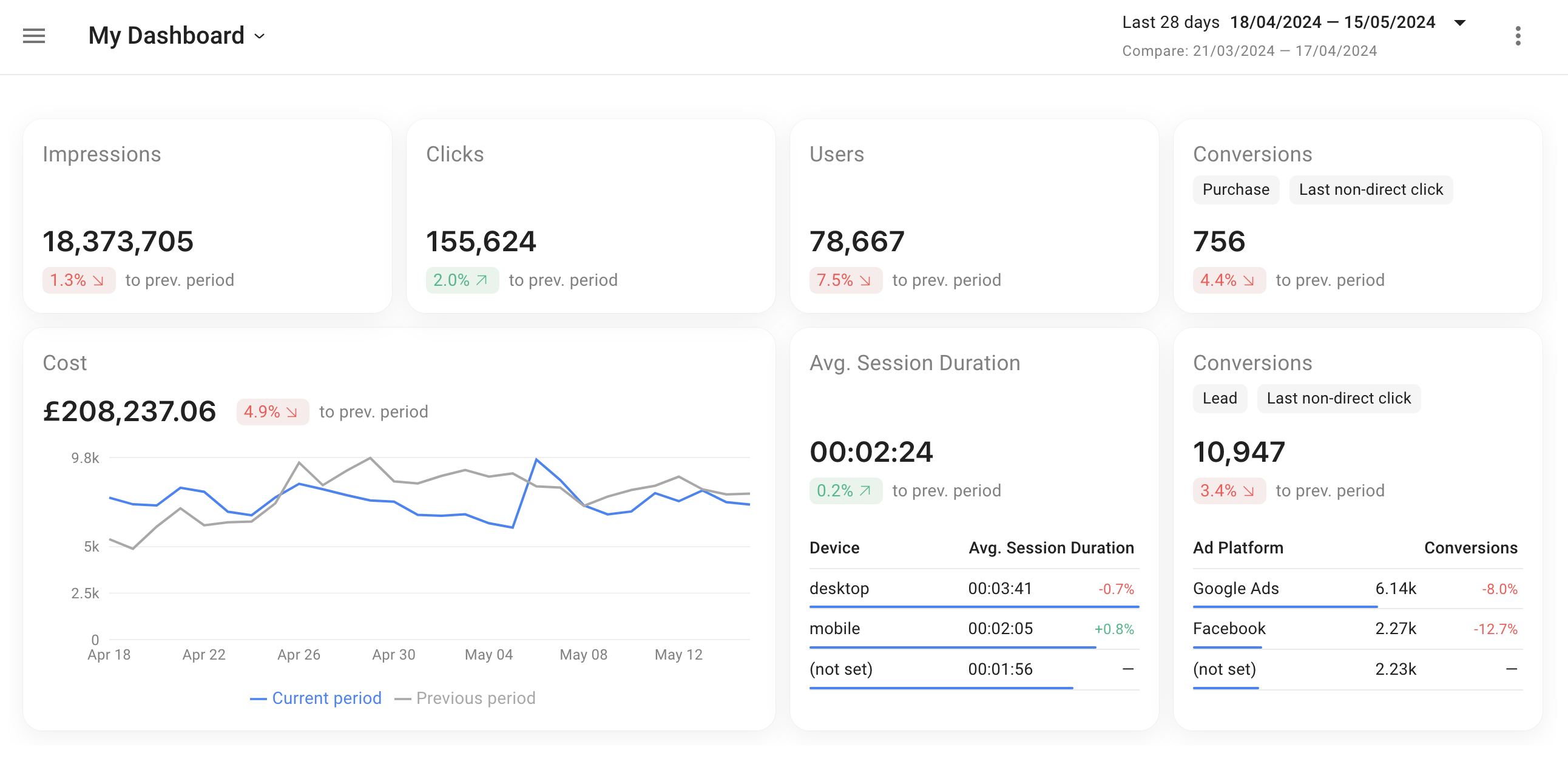
Dashboards are customizable visual representations of your project's performance metrics. They provide an intuitive overview of your data, enabling you to monitor and analyze key insights at a glance. You can create multiple views tailored to your specific needs to track progress, identify trends, and make informed decisions.
 ## Getting started
Before using the dashboards module:
* Set up [event tracking](/project-configuration/events-tracking).
* Connect at least one [data source](/project-configuration/data-sources/overview).
* Define at least one [conversion](/project-configuration/conversions).
## Navigation
* Access the dashboards module by navigating to the **Dashboards** tab in the main menu.
* Switch between different dashboards by clicking on the dashboard name.
## Date filters
The date filter in the top right lets you specify a date range to view metrics and charts, or compare two distinct periods such as the previous week.
## Creating dashboards
Your project comes with a default "Overview" dashboard displaying basic metrics. You can customize it or create a new one.
Click on the name of the current dashboard in the left part of the top menu.
Click **+ Add dashboard**.
## Dashboard customization
Click the three-dot menu at the top right of your screen and select **Edit**.
While in edit mode, you can:
* Rearrange blocks by dragging and dropping them.
* Resize blocks by dragging the lower right corner.
* Add new widgets by clicking **+ Add widget** in the top menu.
Click the **Save** button on the top right corner. All adjustments are shared with users who have access to the project.
## Widget settings
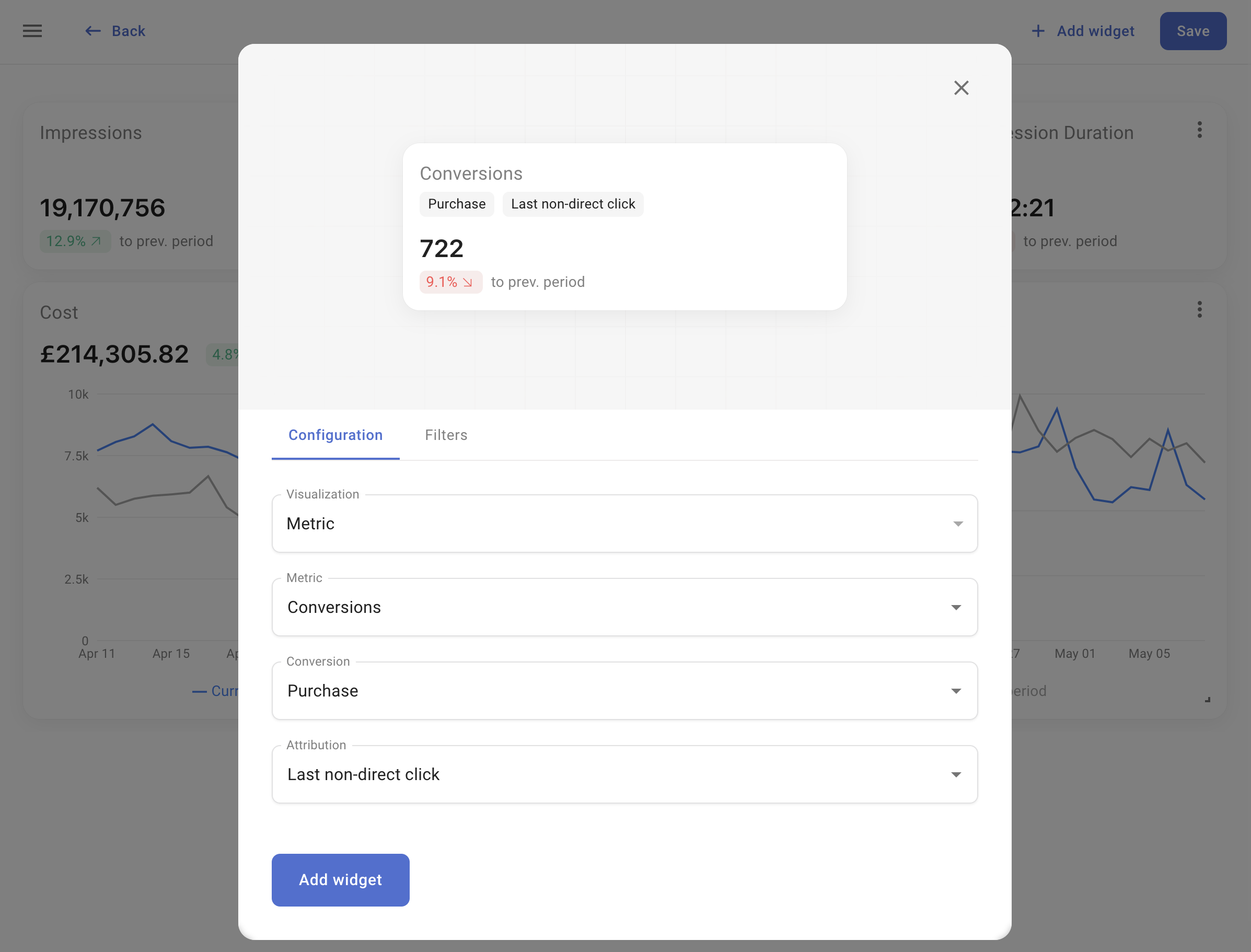
When adding or editing a widget, you can preview it before adding it to your dashboard.
### Configuration
In the Configuration tab, select the visualization type and the metric you want to display.
Displays the numerical value of a single metric.
Visualizes data trends over time.
Displays a metric broken down by a dimension.
Read more about all available dimensions in the [Dimensions](/attribution/dimensions) guide.
When selecting a conversion metric, an additional field appears where you must select the conversion and the [attribution model](/project-configuration/attribution-models) used to calculate the metric.
## Getting started
Before using the dashboards module:
* Set up [event tracking](/project-configuration/events-tracking).
* Connect at least one [data source](/project-configuration/data-sources/overview).
* Define at least one [conversion](/project-configuration/conversions).
## Navigation
* Access the dashboards module by navigating to the **Dashboards** tab in the main menu.
* Switch between different dashboards by clicking on the dashboard name.
## Date filters
The date filter in the top right lets you specify a date range to view metrics and charts, or compare two distinct periods such as the previous week.
## Creating dashboards
Your project comes with a default "Overview" dashboard displaying basic metrics. You can customize it or create a new one.
Click on the name of the current dashboard in the left part of the top menu.
Click **+ Add dashboard**.
## Dashboard customization
Click the three-dot menu at the top right of your screen and select **Edit**.
While in edit mode, you can:
* Rearrange blocks by dragging and dropping them.
* Resize blocks by dragging the lower right corner.
* Add new widgets by clicking **+ Add widget** in the top menu.
Click the **Save** button on the top right corner. All adjustments are shared with users who have access to the project.
## Widget settings
When adding or editing a widget, you can preview it before adding it to your dashboard.
### Configuration
In the Configuration tab, select the visualization type and the metric you want to display.
Displays the numerical value of a single metric.
Visualizes data trends over time.
Displays a metric broken down by a dimension.
Read more about all available dimensions in the [Dimensions](/attribution/dimensions) guide.
When selecting a conversion metric, an additional field appears where you must select the conversion and the [attribution model](/project-configuration/attribution-models) used to calculate the metric.
 ### Filters
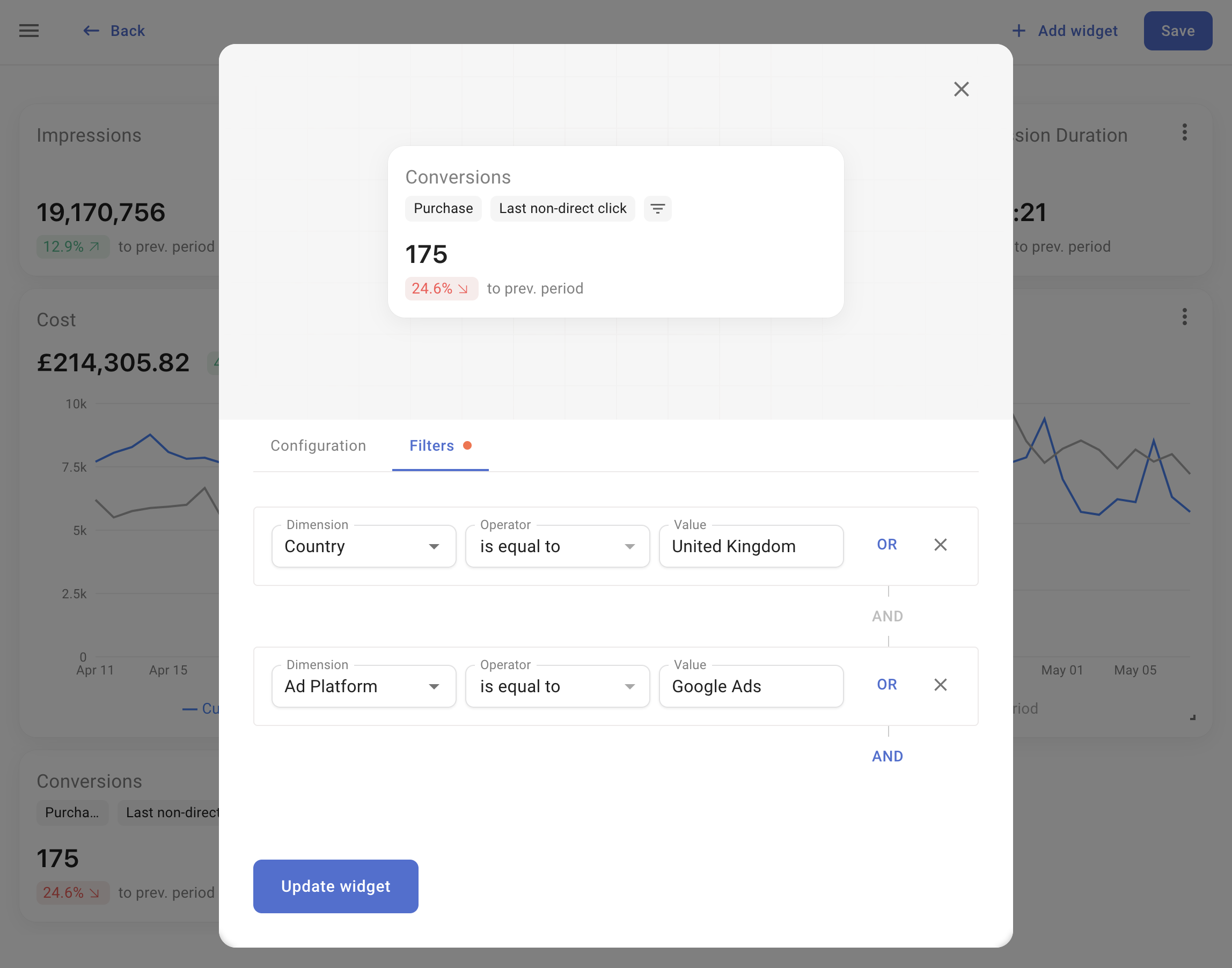
Use the Filters tab to apply filters to metrics based on dimension values.
Each filter row represents a rule. For example, to view data exclusive to visitors from the UK:
1. Select Dimension: **Country**
2. Choose Operator: **is equal to**
3. Pick the value for the United Kingdom from the dropdown.
You can establish multiple rules and connect them using **AND** or **OR** logic.
Examples:
* Display metrics where **Ad platform is equal to Facebook Ads** AND **Country is equal to United Kingdom**
* Display metrics where **Country is equal to United Kingdom** OR **Country is equal to United States**
* Display metrics where **Campaign contains the word SALE**
Widgets with applied filters can be identified by the filter list icon. Hovering over it displays the dimensions used in the applied filters.
### Filters
Use the Filters tab to apply filters to metrics based on dimension values.
Each filter row represents a rule. For example, to view data exclusive to visitors from the UK:
1. Select Dimension: **Country**
2. Choose Operator: **is equal to**
3. Pick the value for the United Kingdom from the dropdown.
You can establish multiple rules and connect them using **AND** or **OR** logic.
Examples:
* Display metrics where **Ad platform is equal to Facebook Ads** AND **Country is equal to United Kingdom**
* Display metrics where **Country is equal to United Kingdom** OR **Country is equal to United States**
* Display metrics where **Campaign contains the word SALE**
Widgets with applied filters can be identified by the filter list icon. Hovering over it displays the dimensions used in the applied filters.