> ## Documentation Index
> Fetch the complete documentation index at: https://docs.segmentstream.com/llms.txt
> Use this file to discover all available pages before exploring further.
# Custom dimensions
> Create custom dimension groupings based on standard dimensions for tailored attribution reports and optimisation portfolios.
You can group sessions and ad platform data by custom dimensions based on standard dimensions such as Source, Medium, Ad Platform, and more.
Custom dimensions let you create reports tailored to your business logic. For instance, you can create a custom dimension to distinguish between paid and non-paid traffic by combining all CPC mediums under a "paid" group and all organic mediums under a "non-paid" group. You can then use this custom dimension in reports to see total metrics for each group.
Custom dimensions can also be used in optimisation portfolios to receive budget allocation recommendations for each custom group.
## Channel custom dimension
The **Channel** custom dimension is predefined and automatically available in all projects. It streamlines analysis of traffic from different sources.
### Default channel groups
* **Google Ads** -- all sessions and ad spend from paid Google Ads.
* **Facebook** -- all sessions and ad spend from paid Facebook.
* **Organic Search** -- all sessions from organic search traffic.
* **Organic Social** -- all sessions from organic social network traffic.
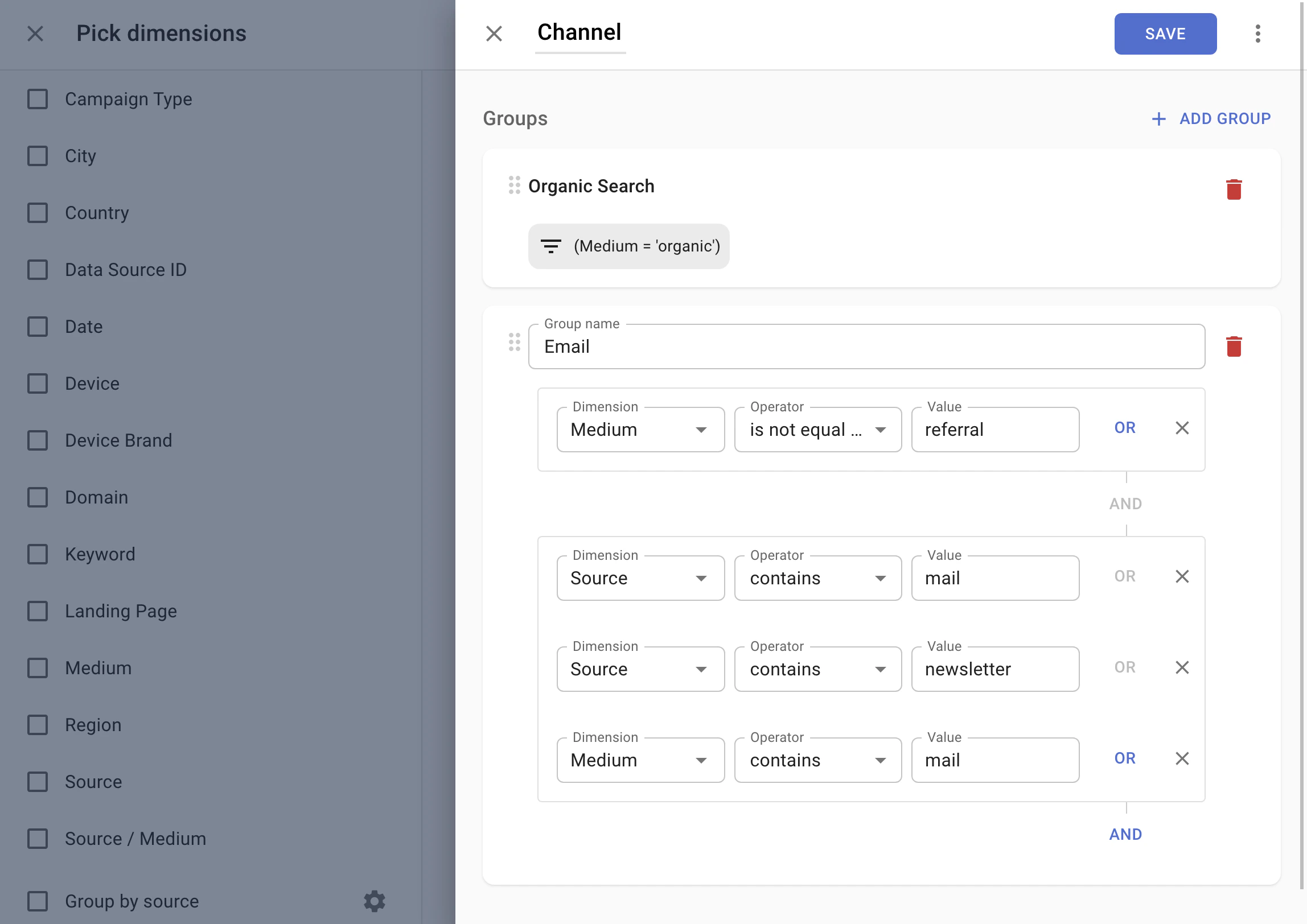
* **Email** -- all sessions from email and newsletter traffic.
* **Referral** -- all other referral traffic.
* **Direct** -- all sessions from direct website access (typing the URL, bookmarks, or untracked sources).
Edit the Channel custom dimension to reflect your reporting requirements. For instance, add new groups for additional ad platforms your business uses.
## How to set up a custom dimension
Open the Attribution reports.
Click **Dimensions**.
Scroll down the dimensions list and click **+ Add custom dimension**.
Enter a name for your custom dimension.
Name your first custom group and set the filters that apply to it. For more information on filtering, see [data filtering](/attribution/data-filtering).
Click **+ Add group** to create additional custom groups.
Click **Save**. Your custom dimension is now available in reports and optimisation portfolios.
The order of custom groups matters. Filtered data trickles from the top group to the ones below. For example, if you want a "Branded" group for branded CPC campaigns and a "CPC" group for all CPC campaigns, place "CPC" below "Branded". Otherwise, all branded campaigns will be reported within the "CPC" group.
 ## Using custom dimensions in reports
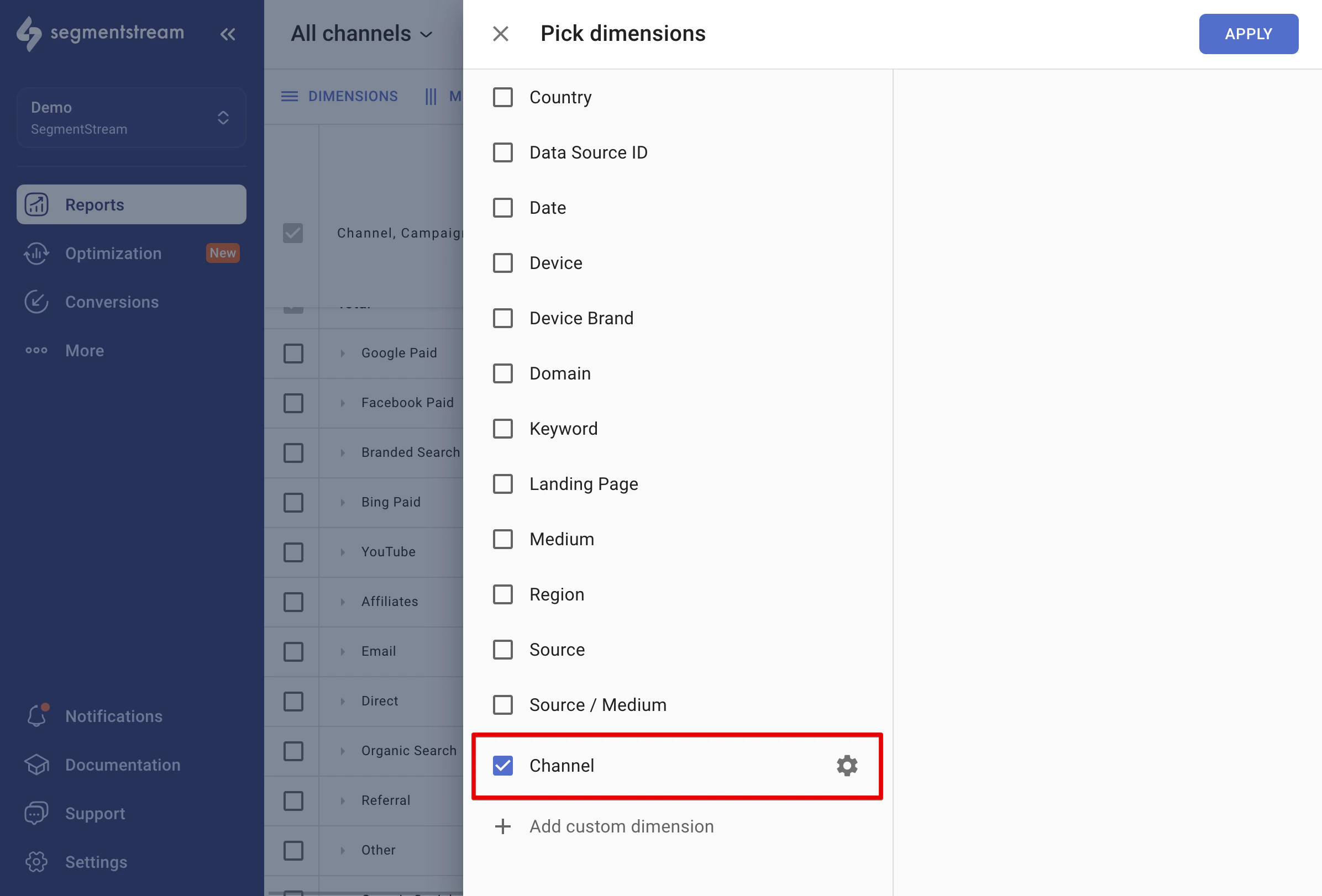
To view data grouped by your custom dimension, select it from the dimension list like any other dimension. Custom dimensions can be edited at any time by clicking the cogwheel icon.
## Using custom dimensions in reports
To view data grouped by your custom dimension, select it from the dimension list like any other dimension. Custom dimensions can be edited at any time by clicking the cogwheel icon.
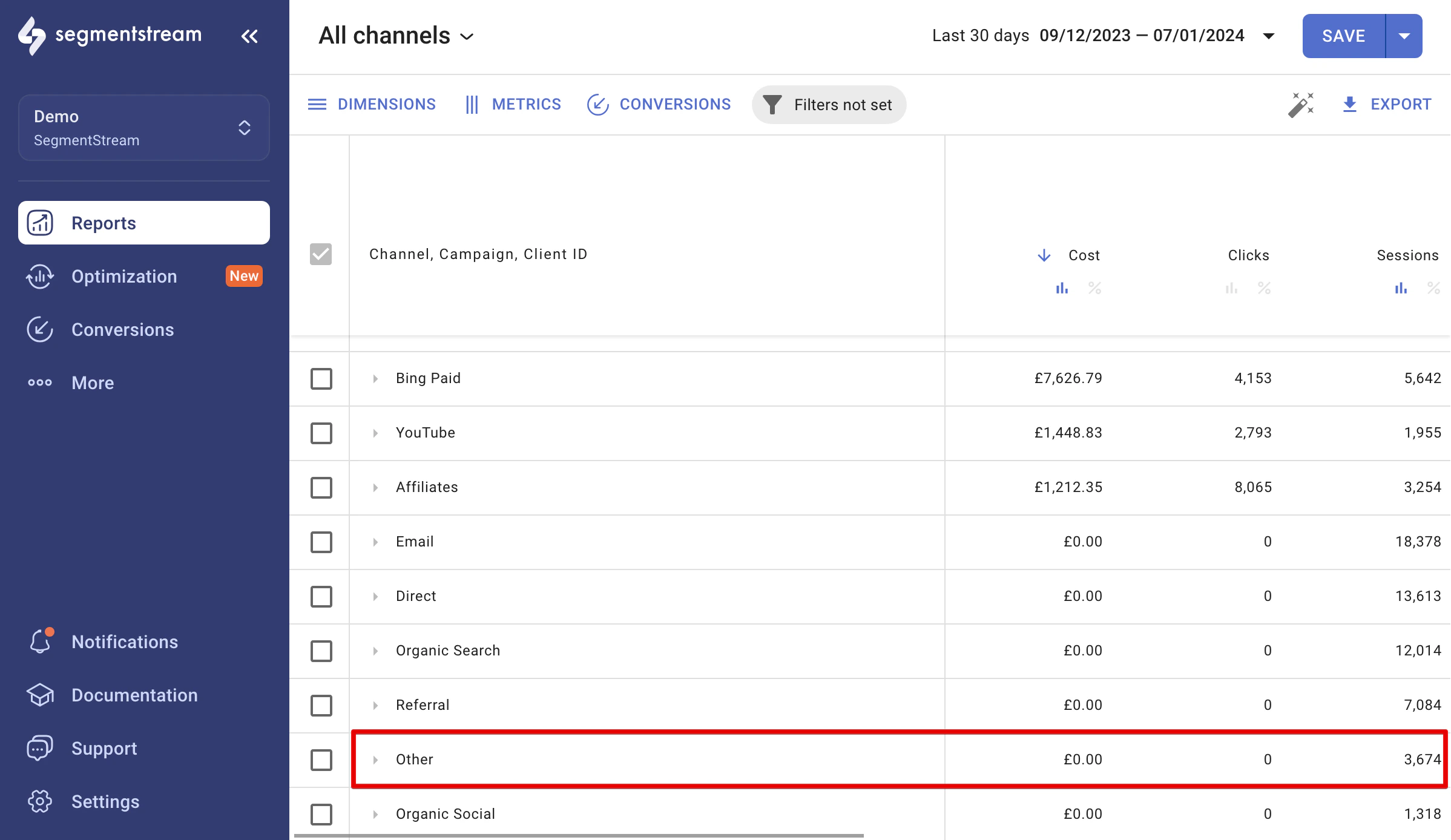
 Any data that does not belong to any custom group within the dimension is displayed in the "Other" row in reports.
 ## Using custom dimensions in optimisation portfolios
Custom dimensions are visible as granularity options during portfolio creation only if they are built from one of these dimensions:
* Ad Platform
* Ad Account
* Campaign
* Campaign Type
* Medium
* Source
* Source/Medium
They will not appear as options if other dimensions are used.
Learn how to use custom dimensions in your optimisation portfolio in the [portfolio setup](/optimization/portfolio-setup) guide.
## Using custom dimensions in optimisation portfolios
Custom dimensions are visible as granularity options during portfolio creation only if they are built from one of these dimensions:
* Ad Platform
* Ad Account
* Campaign
* Campaign Type
* Medium
* Source
* Source/Medium
They will not appear as options if other dimensions are used.
Learn how to use custom dimensions in your optimisation portfolio in the [portfolio setup](/optimization/portfolio-setup) guide.