> ## Documentation Index
> Fetch the complete documentation index at: https://docs.segmentstream.com/llms.txt
> Use this file to discover all available pages before exploring further.
# External BI tools
> Connect SegmentStream pre-aggregated data in Google BigQuery to external BI tools like Looker Studio.
External BI tools are available only on the [enterprise plan](https://segmentstream.com/pricing).
In addition to fully customisable built-in reports, you can use pre-aggregated data stored in your Google BigQuery to build custom reports using third-party BI tools like Looker Studio.
## Looker Studio integration guide
Copy the report from [the Looker Studio template](https://lookerstudio.google.com/reporting/72ea5165-865f-46ac-91c4-631ebab8c1aa/page/rUtYD).
Navigate to the data sources section: **Resource > Manage added data sources**.
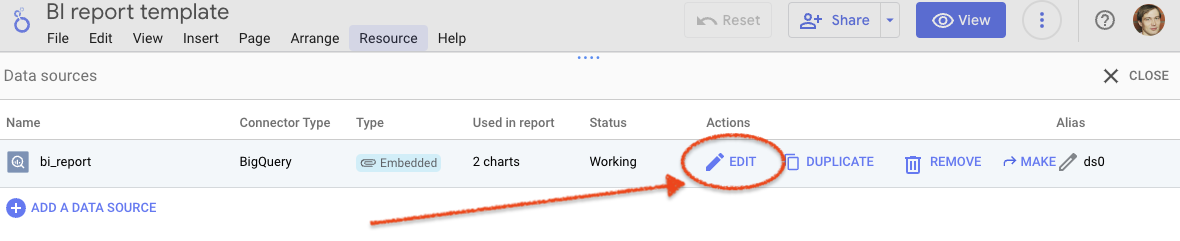
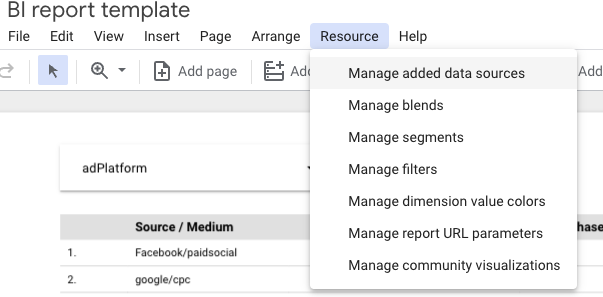 Click the **Edit** button.
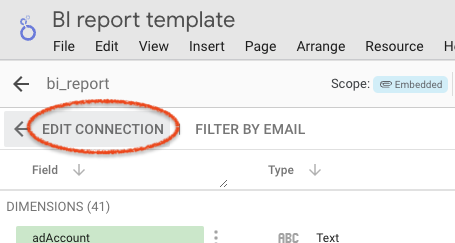
 Select **Edit Connection** at the top left corner.
 Replace the existing project and dataset with the appropriate dataset from your project settings.
 ```sql theme={null}
SELECT *
FROM `YOUR_PROJECT.YOUR_DATASET.bi_report_v4`(
PARSE_DATE('%Y%m%d', @DS_START_DATE),
PARSE_DATE('%Y%m%d', @DS_END_DATE),
30
);
```
Click the **Reconnect** button to apply the changes.
After following these steps, you will have Looker Studio connected to your SegmentStream data. This integration lets you visualise and analyse data in more versatile ways using all the features Looker Studio offers.
```sql theme={null}
SELECT *
FROM `YOUR_PROJECT.YOUR_DATASET.bi_report_v4`(
PARSE_DATE('%Y%m%d', @DS_START_DATE),
PARSE_DATE('%Y%m%d', @DS_END_DATE),
30
);
```
Click the **Reconnect** button to apply the changes.
After following these steps, you will have Looker Studio connected to your SegmentStream data. This integration lets you visualise and analyse data in more versatile ways using all the features Looker Studio offers.